
Complete Locomotion Animations Pack is 33 full-body motion-capture animations for Humanoid characters:
- a looping standing idle;
- four movement families — walk, fast walk, run and fast run — each with a looping cycle, a start, a stop and left and right turns of 45° and 90°;
- four jumps from standing: jump, jump high, jump forward and jump long.
Every clip carries authored root motion. The pack also includes 25 reference Animator controllers whose transitions are timed to the step phase, a sample character and three interactive sample scenes.
It is an animation pack, not a movement controller: there is no player input, collision handling or terrain adaptation.
Requirements
- Unity version: 6000.5.7f1 or newer. Tested with Unity 6000.5.7f1 and URP 17.5.0.
- Rig: Humanoid, with a valid Avatar. The clips rely on Mecanim retargeting, so generic and legacy rigs are not supported.
- Render pipeline: any, for the animations and controllers. The sample scenes and the sample character’s materials are URP — see Render pipelines.
- Sample controls: mouse and keyboard. There are no touch controls.
The samples use Unity’s built-in IMGUI. They need no Input System, Cinemachine, TextMeshPro, third-party character controller or other DevEloop pack.
Video
- Complete Locomotion Animations Pack 2.0.0 — every animation, the locomotion routes and the jumps in the sample scenes.
The animations
All clips are imported as Humanoid at 120 FPS. Each FBX holds one clip, and the file and clip share a name. Durations are for the clip alone, at speed 1.
| Clip | Duration, s | Loop | Purpose |
|---|---|---|---|
Idle |
8.000 | Yes | Standing idle |
Walk |
1.167 | Yes | Walk cycle |
WalkStart |
1.417 | Idle to walk | |
WalkStop |
1.800 | Walk to idle | |
WalkLeftTurn45, WalkRightTurn45 |
1.750 | 45° turn while walking | |
WalkLeftTurn90, WalkRightTurn90 |
2.333 | 90° turn while walking | |
WalkFast |
0.950 | Yes | Fast walk cycle |
WalkFastStart |
1.483 | Idle to fast walk | |
WalkFastStop |
1.617 | Fast walk to idle | |
WalkFastLeftTurn45, WalkFastRightTurn45 |
1.900 | 45° turn while walking fast | |
WalkFastLeftTurn90, WalkFastRightTurn90 |
2.400 | 90° turn while walking fast | |
Run |
0.800 | Yes | Run cycle |
RunStart |
0.933 | Idle to run | |
RunStop |
2.600 | Run to idle | |
RunLeftTurn45, RunRightTurn45 |
1.600 | 45° turn while running | |
RunLeftTurn90, RunRightTurn90 |
2.400 | 90° turn while running | |
RunFast |
0.700 | Yes | Fast run cycle |
RunFastStart |
0.850 | Idle to fast run | |
RunFastStop |
2.133 | Fast run to idle | |
RunFastLeftTurn45, RunFastRightTurn45 |
1.400 | 45° turn while running fast | |
RunFastLeftTurn90, RunFastRightTurn90 |
2.100 | 90° turn while running fast | |
Jump |
1.867 | Vertical jump | |
JumpHigh |
2.200 | Higher vertical jump | |
JumpForward |
2.000 | Forward jump | |
JumpLong |
2.333 | Longer forward jump |
Only the idle and the four movement cycles loop; starts, stops, turns and jumps
are one-shot. RunStart and RunFastStart go straight into running, without
walking steps first. All four jumps start and end standing — they are not
running jumps.
What is in the package
Everything lives under Assets/DevEloop/LocomotionAnimationsPack/:
| Folder | Contents |
|---|---|
Animations/ |
The 33 FBX files, in Idle/, Walk/, WalkFast/, Run/, RunFast/ and Jump/ |
Controllers/Sequences/ |
The 25 reference Animator controllers |
Character/ |
The sample character — model, prefab, three URP materials, textures |
Samples/AnimationLibrary/ |
The Animation Library scene, plus the scripts, materials and mesh all three scenes share |
Samples/LocomotionShowcase/ |
The Locomotion Showcase scene and its 16 route controllers |
Samples/JumpShowcase/ |
The Jump Showcase scene |
Samples/Shared/Settings/ |
An optional sample URP pipeline |
Documentation/ |
TransitionReference.md, every transition of the 25 controllers |
AI/Skills/ |
Three skills for AI coding assistants |
The animation importers reference the Avatar in Character/Models/Model.fbx, so
keep Character/ together with Animations/ even if you don’t use the sample
character.
Try the samples first
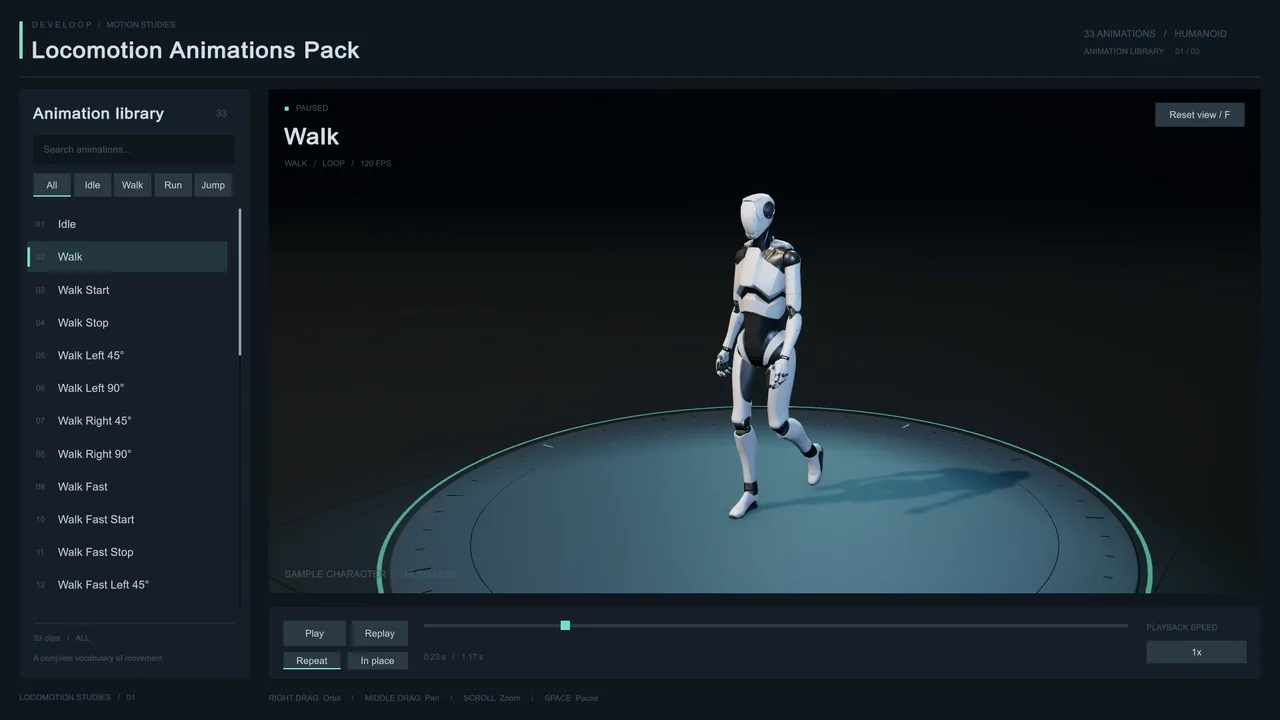
Open Samples/AnimationLibrary/AnimationLibrary.unity and press Play. Select a
row to play that animation; filter by category or search by name.
Two more scenes play complete sequences:
| Scene | What it shows |
|---|---|
| Animation Library | Each of the 33 clips on its own |
| Locomotion Showcase | 20 routes — straight, 45° and 90° left and right, for each movement family. Every route starts in idle, starts moving, follows its route, stops and returns to idle |
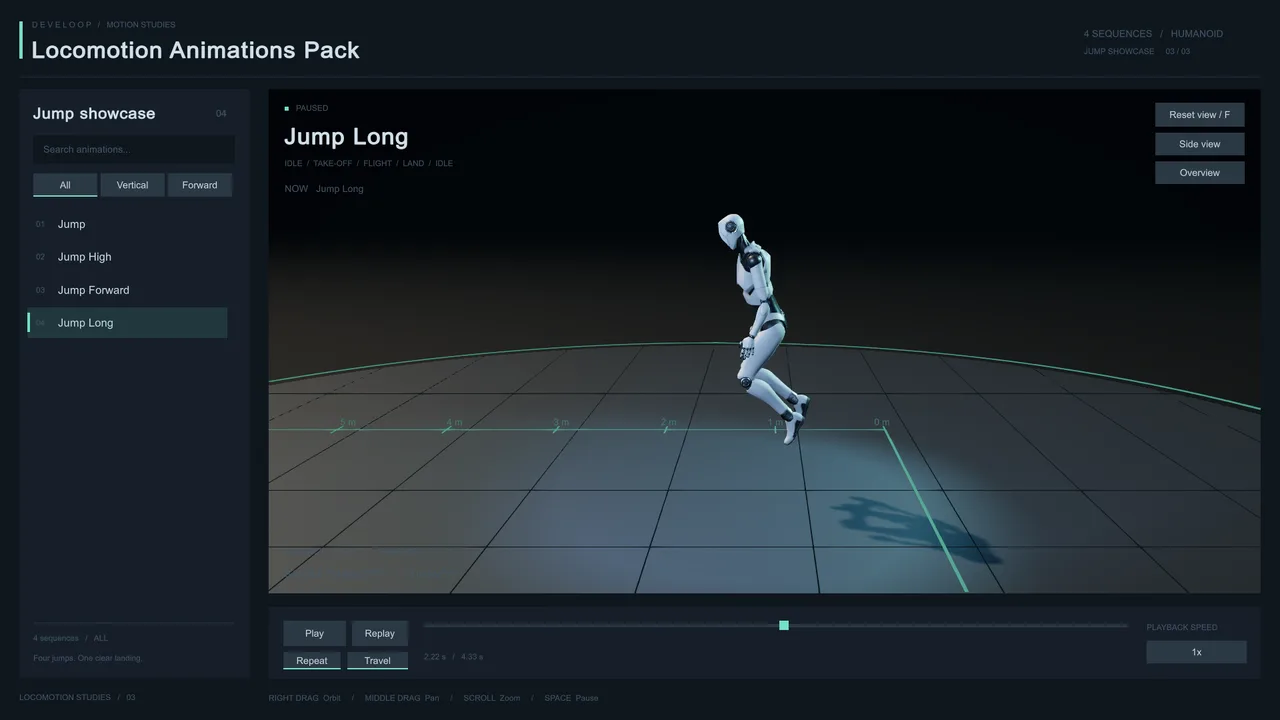
| Jump Showcase | The four jumps between idles, over a 1 m grid with a side view for judging height and distance |
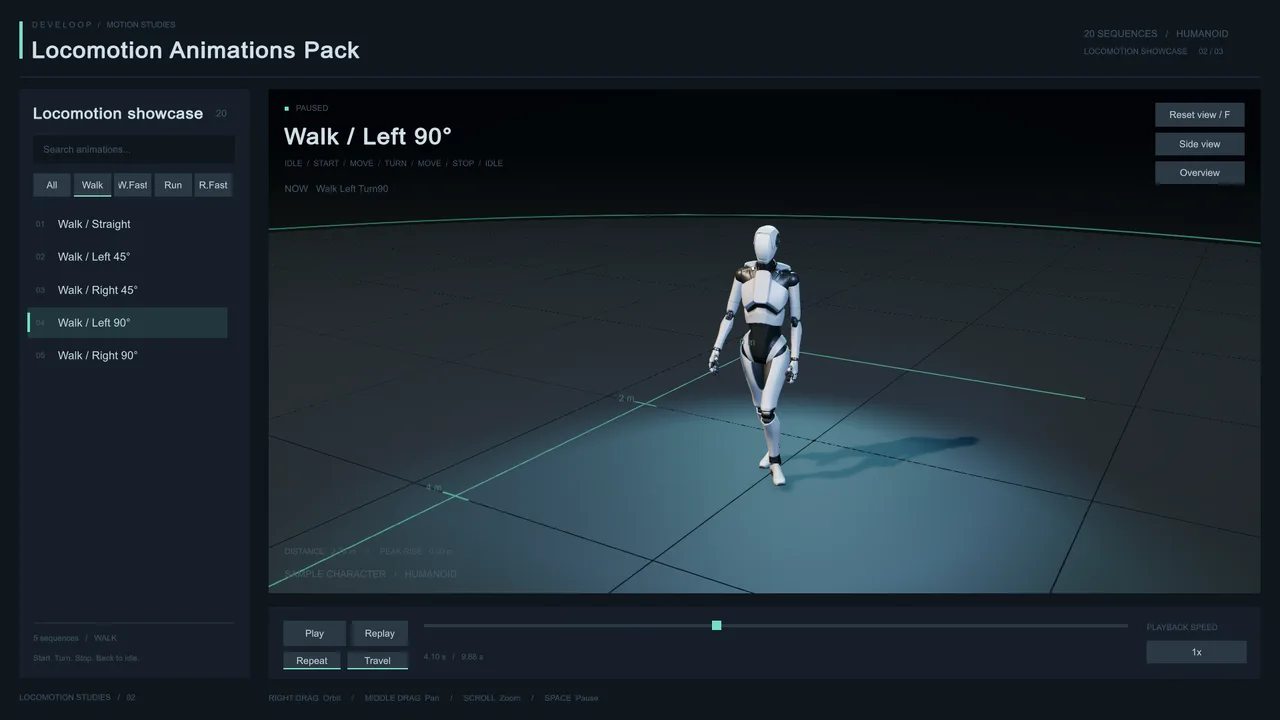
| Control | Action |
|---|---|
| Select a row | Play the clip or sequence from the start |
| Pause / Space | Pause or resume |
| Replay / R | Restart from the original position |
| Timeline | Seek |
| Speed | Cycle through 0.25×, 0.5×, 1×, 1.5× and 2× |
| Repeat | Loop the preview; when off, the final pose holds |
| Travel | Apply the root motion; the camera follows the character |
| In place | Keep the character on the spot, but keep its vertical movement and turning |
| Right-drag / middle-drag / wheel | Orbit / pan / zoom over the preview |
| Reset view / F | Restore the default camera |
| Side view / Overview | In the showcase scenes: watch from the side, or see the whole platform |
Shortcuts don’t work while the search field has focus. The Distance readout is the straight-line horizontal distance from the start, not the length of the path; Peak rise is the highest rise of the character’s root, not of the head or feet.
In place affects only the preview. The pack ships one version of each animation — there are no separate in-place clips.
Try your own character
- Import your model as Humanoid and check that its Avatar is valid.
- Make a prefab with an enabled Animator, your Avatar assigned and URP-compatible materials.
- Open a sample scene and select the object named
… - assign Your Character herein the Hierarchy. - Drag the prefab into Your Character on the
LocomotionLibrarycomponent and press Play.
You can swap characters during Play mode; clear the field to bring the sample character back. An invalid Avatar gives a message and leaves the current character in place.
Use a plain preview prefab: disable movement, physics and any other script that moves the character or drives its Animator, and avoid non-uniform scale or an offset between the root and the Animator. A character with different proportions may not plant its feet exactly like the sample one — the preview adds no foot IK or terrain alignment.
Use the animations on a character
With a reference controller
- Give your Humanoid character an Animator with a valid Avatar.
- Assign a controller from
Controllers/Sequences/to its Controller field. - Enable Apply Root Motion, and make sure nothing else moves the character.
- Press Play. The sequence runs by itself.
The controllers have no parameters — every transition is on exit time, so there is nothing to trigger.
| Controller | Sequence |
|---|---|
Idle |
Idle, looping |
WalkCycle, WalkFastCycle, RunCycle, RunFastCycle |
Idle → start → two cycles → stop → idle |
<Family>LeftTurn45, <Family>RightTurn45, <Family>LeftTurn90, <Family>RightTurn90 |
Already moving → turn → keep moving. No start or stop. 16 controllers in all |
Jump, JumpHigh, JumpForward, JumpLong |
Idle → jump → idle |
Each sequence runs once and ends in a looping state; it does not restart. The
routes in the Locomotion Showcase are 16 more controllers, in
Samples/LocomotionShowcase/Controllers/, that join the cycle and turn sequences
into one: idle, start, move, turn, move, stop, idle.
In your own controller
Expand an FBX in the Project window and drag its clip into your Animator Controller: loops for sustained movement, starts and stops for getting in and out of it, turns for changing direction.
The transitions are what make the sequences look right. Each one sets Exit Time, Transition Duration and Transition Offset together so that the next clip begins on the same foot, at the same phase of the step. Copy all three, with Fixed Duration on. A crossfade at an arbitrary moment makes the feet slide or the pose jump.
The same applies to gameplay: a turn or a stop requested at any moment can land on the wrong foot. In a responsive controller, hold the request until the cycle reaches the right phase, or do your own phase matching.
Transition timings
In all 25 controllers:
- every transition takes 0.06666667 s, with Fixed Duration on;
- Has Exit Time is on and there are no conditions; exit time is normalized
to the source state — on a loop,
2means after two cycles; - the offset is the normalized time the destination state starts at;
- state speed is 1; Foot IK, Write Defaults and transition interruption are off.
From idle, every start and every jump leaves at exit time 0.125 with offset 0.
Starting and stopping
| Family | Start → cycle: exit time | Start → cycle: offset | Cycle → stop: exit time | Stop → idle: exit time |
|---|---|---|---|---|
| Walk | 0.9529412 | 0.94285715 | 2 | 0.962963 |
| WalkFast | 0.9550562 | 0.21052632 | 2 | 0.9587629 |
| Run | 0.9285714 | 0.16666667 | 2 | 0.974359 |
| RunFast | 0.92156863 | 0.1904762 | 2 | 0.96875 |
Turning. Left and right turns use the same values. The cycle enters the turn with offset 0.
| Family | Cycle → turn: exit time | 45° → cycle: exit time | 45° → cycle: offset | 90° → cycle: exit time | 90° → cycle: offset |
|---|---|---|---|---|---|
| Walk | 1 | 0.96190476 | 0.44285715 | 0.9714286 | 0.94285715 |
| WalkFast | 2 | 0.9649123 | 0.9298246 | 0.9722222 | 0.45614034 |
| Run | 2 | 0.9583333 | 0.9166667 | 0.9722222 | 0.9166667 |
| RunFast | 2 | 0.95238096 | 0.9047619 | 0.96825397 | 0.9047619 |
Jumping. Jump → idle, offset 0:
| Jump | Exit time |
|---|---|
Jump |
0.96428573 |
JumpHigh |
0.969697 |
JumpForward |
0.96666664 |
JumpLong |
0.9714286 |
Copy these as they are: don’t convert an offset to seconds, and don’t switch to a normalized duration while keeping a value in seconds. The controller assets hold the full precision. Changing clip speed, clip length, root-motion import settings or where a state starts means checking the blends, foot contact and final heading again.
Root motion and jumps
The clips carry authored root translation and rotation. With Apply Root Motion on, the Animator moves and turns the character with no movement script, and a turn changes the heading by exactly its angle. Keep the supplied import settings to reproduce the reference sequences.
In a game, decide which system owns movement. If your motor takes the animation’s
root motion in OnAnimatorMove, move the character through the motor only — not
through the motor and the Transform as well. The samples apply the motion
directly and handle no collisions, slopes or moving platforms.
The jumps’ height and distance are already in their root motion. Don’t add a jump impulse or gravity on top of them. Your game still needs its own rules for collisions, grounding and handing control back to the motor after landing.
Turning root motion off, or baking it into the pose, changes the result. It is not the same as the samples’ In place mode, which keeps jump height and turning. Try import changes on a copy of the clip.
Render pipelines
The animations and controllers work in every render pipeline. Only the sample scenes and the sample character’s materials are URP; Built-in and HDRP versions are not supplied. Your own character needs materials for your project’s pipeline.
Your existing URP pipeline is fine for the samples. For the lighting they were
set up with — HDR, 4× MSAA and soft shadows — you can assign
Samples/Shared/Settings/SamplePipeline.asset in Project Settings → Graphics
and check the pipeline overrides under Quality, which take precedence. This
is optional and changes how your whole project renders; importing the package
never changes your pipeline or project settings by itself.
Sample scripts
The four scripts in Samples/AnimationLibrary/Scripts/, in the
DevEloop.LocomotionAnimationsPack.Samples assembly, exist only for the sample
scenes. The animations and the reference controllers need none of them.
| Script | What it does |
|---|---|
LocomotionLibrary |
Plays clips and controllers through Playables: root motion, seeking, swapping in your character |
LibraryPanel |
The searchable library, categories, playback controls and readouts (IMGUI) |
LibraryOrbitCamera |
Orbit, pan, zoom, shortcuts and the showcase camera views; reads IMGUI events, so it needs no input package |
ShowcaseStudio |
Keeps the showcase lights on the moving character and draws the distance labels |
Upgrading from an earlier version
Version 2.0.0 is a new library, not an update of the old one. The asset GUIDs and the animation and controller references are different, and there is no automatic migration.
- Back up your project, including any assets you have modified.
- Try 2.0.0 in a separate project first.
- Reassign the animation and controller references in your scenes by hand, rather than importing over a customized earlier version and expecting existing scenes to keep working.
The sample scenes and materials are now URP.
Troubleshooting
| Symptom | Check |
|---|---|
| The sample character or platform is pink | Use URP and check the pipeline set in Graphics and Quality. The materials are not Built-in or HDRP materials |
| The character stays in a T-pose | The Humanoid Avatar, the Animator Controller and the clip; look for missing references in the Console |
| Your Character is rejected | The model must be Humanoid with a valid Avatar mapping; generic and legacy rigs don’t work |
| The character moves twice as far, drifts or jumps too high | Something else is moving it too: disable competing movement scripts, don’t apply root motion twice, and don’t add gravity to the jumps |
| A turn or stop slides in your own controller | Restore the exit time, duration and offset from the timings; check the state speed |
| Feet float or sink on another character | The Avatar mapping, proportions, scale and any root offset. Retargeting doesn’t guarantee identical foot contact on every model |
| A sequence plays once and stays in idle | That is how the Cycle and Jump controllers end. Use Replay or Repeat in the samples, or restart the sequence from your code |
| Keyboard shortcuts don’t respond | Leave the search field and click into the Game view |
| A showcase scene has missing components or materials | It was partly imported. Reimport the whole package, including Samples/AnimationLibrary/ and the sample character |
Skills for AI coding assistants
Three skills ship inside the package, under
Assets/DevEloop/LocomotionAnimationsPack/AI/Skills/. Each is a plain SKILL.md
that describes one part of the pack in the terms an assistant needs to act on
it — the real clip, controller and state names and the exact transition values
rather than plausible guesses.
| Skill | Covers |
|---|---|
complete-locomotion-animations-pack-setup-and-overview |
Checking the install, Unity and URP versions, the animation catalogue, choosing a sequence or sample |
complete-locomotion-animations-pack-sample-preview |
The three sample scenes, playback and camera controls, previewing your own character |
complete-locomotion-animations-pack-use-sequences |
Putting the reference controllers on a character, editable copies, keeping the transition timings, checking root motion |
Point your assistant at that folder, or copy the skills to wherever it reads them from. They are ordinary Markdown and depend on no particular tool.
Support
Questions, bug reports and suggestions are welcome. Include your Unity and URP versions, the clip or scene, any Console message, the steps to reproduce, and whether it also happens with the sample character.