
Audio Face Animator turns speech into facial animation for characters with ARKit-compatible blendshapes. It uses the NVIDIA Audio2Face-3D model and runs locally, with CPU generation available by default.
A performance can carry an emotion, the eyes can be driven from the rig’s own eye bones, and the character blinks on its own. Individual ARKit shapes can drive several blendshapes or a bone, so rigs whose jaw is a bone are supported too.
Use preflight to check the selected backend before generating. CPU checks do not require an NVIDIA GPU or build a TensorRT engine.
Requirements
| Requirement | Minimum |
|---|---|
| Platform | Windows 10 / 11, 64-bit |
| CPU | 64-bit processor; generation speed depends on CPU performance |
| NVIDIA GPU | Optional in Full only; compute capability 7.5 or newer and about 6 GB free VRAM |
| NVIDIA GPU driver | GPU backend only: recent enough for CUDA 12.9; version 576 or newer recommended |
| TensorRT | GPU backend only: separate TensorRT 10.16.1.11 Windows x64 / CUDA 12.9 installation |
| Unity | 6000.0 or newer |
| Disk | Imported asset: about 1.58 GiB Full / 0.78 GiB Lite, plus a separate copy of model data in StreamingAssets. Allow additional space for Unity’s Library, and for TensorRT and its engine when using GPU. |
| Sample scene UI | Unity Input System (com.unity.inputsystem 1.14.2); Inspector/API generation does not need it |
Built-in, URP and HDRP are all fine — the plugin drives blendshape weights and transforms, and never touches materials or shaders.
Versions Comparison: Lite vs Full
| Feature | Lite | Full |
|---|---|---|
| Generation backend | CPU | CPU (default), NVIDIA GPU (optional) |
| Audio processed per clip | First five seconds | No edition limit |
| Generation | Windows x64 Editor | Windows x64 Editor and Mono/IL2CPP Player |
| Baked clip playback | Any Unity Player | Any Unity Player |
| Characters, emotions, eyes, custom rigs | Included | Included |
The Lite version has three generation limitations:
- CPU is the only backend. Full also offers NVIDIA GPU.
- Generation uses only the first five seconds of audio.
- Generation works in the Unity Editor only. Baked AnimationClips still play in Player builds.
Everything else — mapping, emotions, eyes, blinking, AnimationClip export — is the same in both.
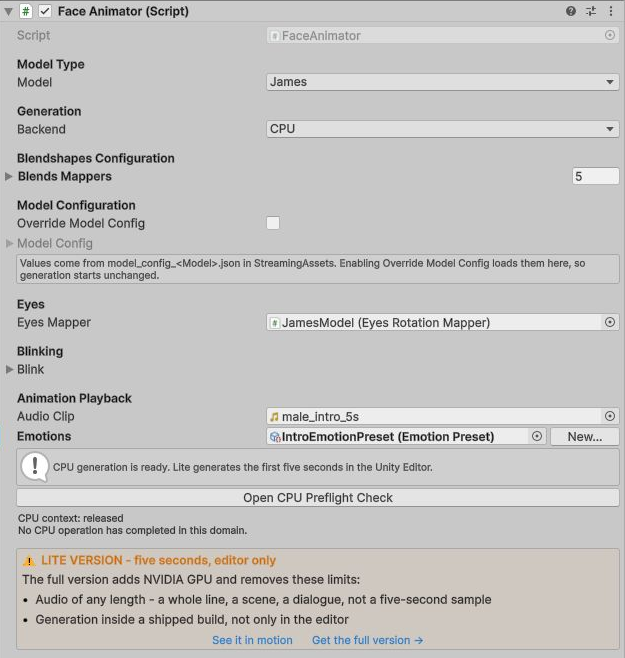
If you own the full version and still see a five-second cap or an orange ⚠️ LITE VERSION banner on the Face Animator, the model files did not arrive intact; see Troubleshooting. The preflight check reports which edition is installed, and says when it cannot tell yet because the sync has not run.
Configuration
Sync the model files, choose Checks > CPU in preflight, then generate in the sample scene. Full users who explicitly select NVIDIA GPU must also prepare a TensorRT engine for their GPU.
Both editions add Preflight Check, Sync StreamingAssets and Documentation under Tools → AudioFaceAnimator. Full also adds Setup TensorRT Engine.
Preflight check
Tools → AudioFaceAnimator → Preflight Check. It opens automatically at Editor startup when common platform or model checks fail, including a fresh import whose model files have not been synced.
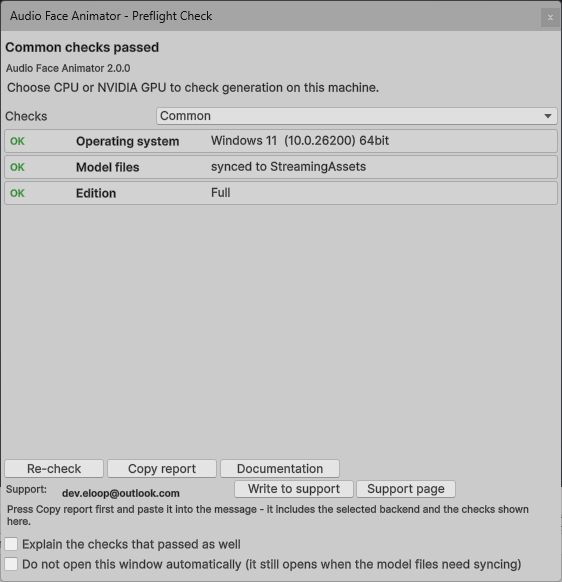
Automatic startup checks common platform and model requirements. Select Checks > CPU for CPU libraries and model readiness; in Full, select Checks > NVIDIA GPU separately for driver, GPU memory and TensorRT engine. Opening CPU diagnostics does not load the ONNX session.
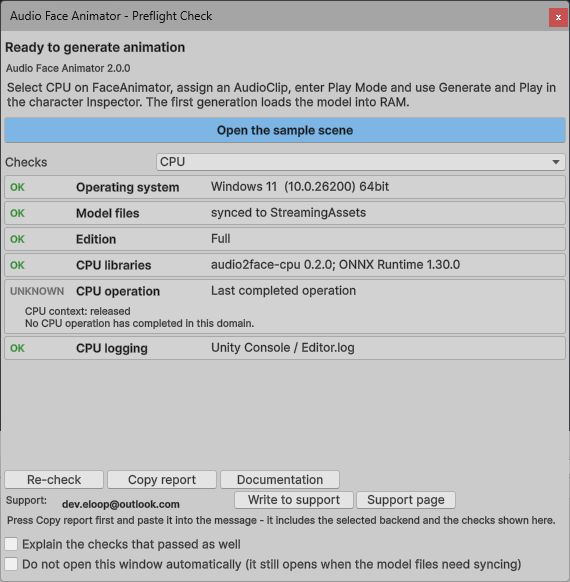
Before the first CPU generation, CPU operation can show UNKNOWN with “No CPU operation has completed in this domain.” This is operation history, not a failed readiness check; the headline above can still say Ready to generate animation.
| Badge | Meaning |
|---|---|
| OK | Nothing to do. |
| CHECK | Review the warning before generating — for example, low free VRAM or an engine that still needs building. This is not a guarantee that generation will succeed. |
| BLOCKED | Generation cannot run until this is dealt with. |
| UNKNOWN | The check could not run, almost always because an earlier line failed. Fix that one and press Re-check. |
Generation needs Windows x64. A GPU below compute capability 7.5 blocks only the NVIDIA GPU backend; Full users can explicitly select CPU.
Re-check runs the selected checks again. Copy report puts the selected backend, edition and displayed results on the clipboard — which is what to paste into a support message. Two ticks sit at the bottom: Explain the checks that passed as well adds the explanation paragraph under the lines that are fine too, not only under the ones that are not, and Do not open this window automatically stops it opening on its own — except when the model files need syncing, which it always reports.
1. Sync StreamingAssets
Tools → AudioFaceAnimator → Sync StreamingAssets, then Copy All Files. It copies the model data, so give it time to finish. Run it again after every plugin update: until you do, generation keeps using the old model data without saying anything, which is why the preflight treats out-of-date files as a failure and opens itself to tell you.
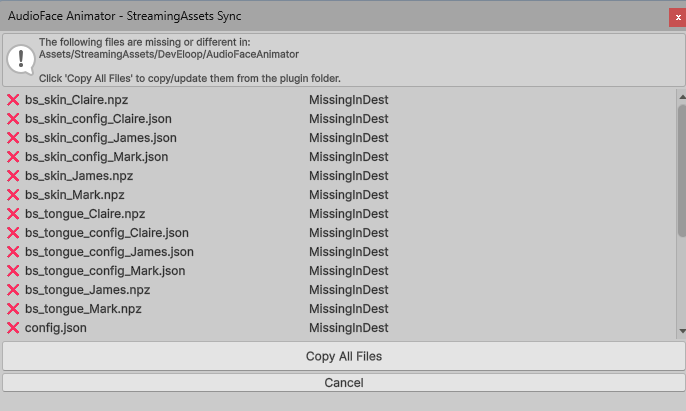
This copies the model files to Assets/StreamingAssets/DevEloop/AudioFaceAnimator,
which is where Unity looks for them at runtime. The window compares file
content, not timestamps, so an updated model file shows up as a mismatch and a
damaged one is repaired by copying again. No Differences means there is nothing
to do.
2. Setup TensorRT engine (Full, NVIDIA GPU only)
CPU users can skip this step. Full’s GPU backend requires a separate TensorRT 10.16.1.11 Windows x64 / CUDA 12.9 installation. No TensorRT DLLs are included in the asset; CUDA DLLs are bundled.
- Open Tools → AudioFaceAnimator → Setup TensorRT Engine and press Download TensorRT, or use the NVIDIA download page. Sign in to NVIDIA and select the exact version above, not TensorRT for RTX or a newer release.
- Extract the whole ZIP, for example to
C:\Tools\TensorRT-10.16.1.11. Keep all builder resources, not onlynvinfer_10.dll. - Open Windows Edit environment variables for your account, then
Path → Edit → New and add
C:\Tools\TensorRT-10.16.1.11\bin. Preserve the existing entries. - Close the Unity Editor and fully exit Unity Hub, including its tray icon.
Reopen Hub and the project to pick up the new
PATH. - Press Check Installation in the setup window. Resolve any reported missing, incompatible or conflicting files before building the engine.
The plugin does not download dependencies or edit PATH for you. Python, pip
and a separate CUDA Toolkit are not required. Once installed, generation runs offline.
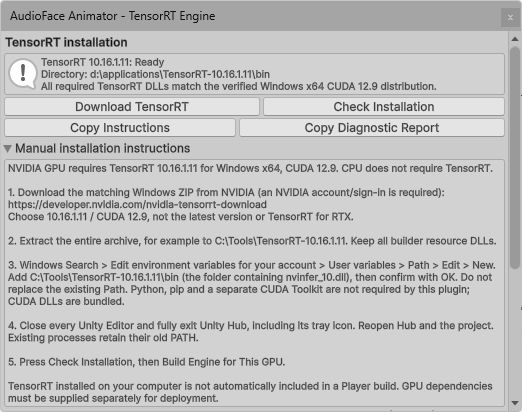
Expand Manual installation instructions for the setup steps. This example was captured on a machine where TensorRT was already installed.
Tools → AudioFaceAnimator → Setup TensorRT Engine, then Build Engine for This GPU — the preflight report links straight to it. Building can take a minute or longer, depending on the machine.
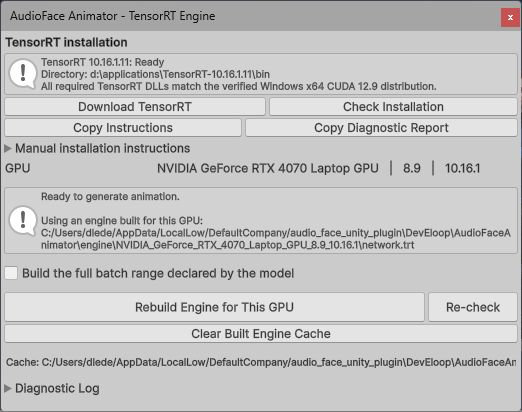
The engine is compiled from the network.onnx synced in step 1, because a
compiled engine only loads on the GPU architecture it was built for. Leave Build
the full batch range declared by the model off — it doubles the engine size and
reserves about 2 GB more GPU memory for a capability the plugin never uses.
The result is cached at
%USERPROFILE%\AppData\LocalLow\<company>\<product>\DevEloop\AudioFaceAnimator\engine\<gpu-signature>\
and reused on every later run. The cache key is your GPU’s signature plus a
fingerprint of network.onnx, so the engine survives plugin updates but is
rebuilt — correctly — after a GPU or driver change, or when the model itself
changes. Clear Built Engine Cache in the same window forces a rebuild.
In a standalone build the first GPU generation call builds the engine on each player’s machine, after the same external TensorRT installation is available.
Preparing your character
Two components: a Face Blends Mapper on each face renderer, and one Face Animator on the character that drives them.
1. Face Blends Mapper
Add it and assign your face SkinnedMeshRenderer to Target Renderer.
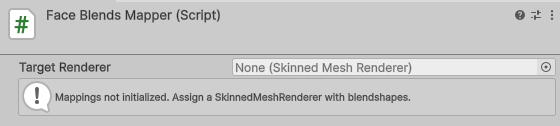
It immediately creates all 52 ARKit rows and matches them against the mesh’s
blendshapes — ignoring case, spaces and underscores, and accepting prefixed names
like CC_Base_Body.jawOpen. The console reports the result, naming every row it
could not match.
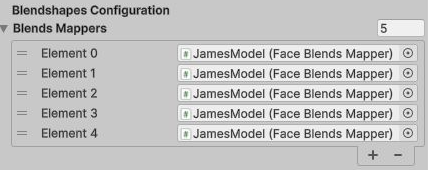
Add one mapper per face renderer (head, teeth, tongue and eyes are often separate). The three shipped prefabs carry five each.
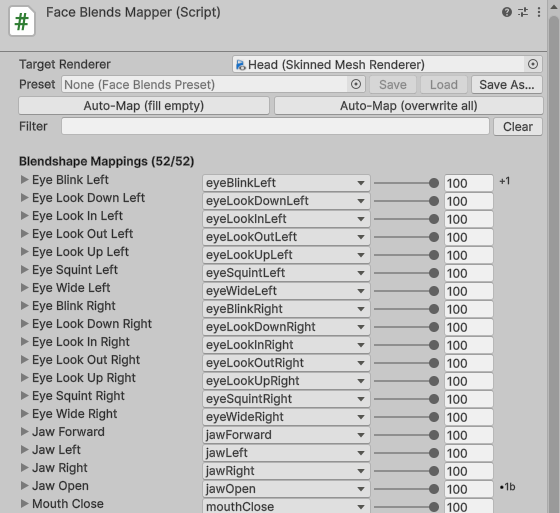
Matching is deliberately generous, so read down the list once. A Filter box narrows the 52 rows while you work, and each row expands to show everything it drives:
- Blendshapes — one or more mesh blendshapes, each with its own max weight
(0–100, default 100). Max weight is both scale and ceiling: 50 halves the
shape’s travel. This is the tuning control — lower
jawOpenif the mouth opens too far. Use Add blendshape target for a rig that splits one ARKit shape across several shapes, or needs a corrective; the collapsed row then shows a+Nbadge. - Bones — see below.
- Preview — a 0–1 slider that drives the row live in the Scene view, without generating anything. The quickest proof that a row is wired correctly. Collapsing the row, or selecting another object, returns the face to rest.
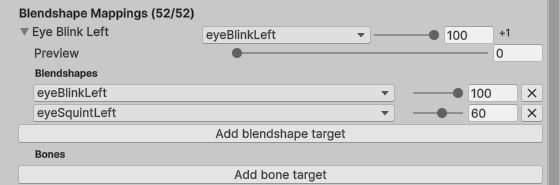
Auto-Map (fill empty) touches only unmapped rows; Auto-Map (overwrite all) redoes everything, discarding manual edits. Several rows may point at the same mesh blendshape — their contributions are summed and clamped, so nothing is lost.
jawOpen, mouthClose, mouthFunnel and mouthPucker are the rows speech
cannot do without. Check those first.
Driving a bone instead of a blendshape
For a rig whose jaw, lips or brows are bones, expand the row and press Add bone target.
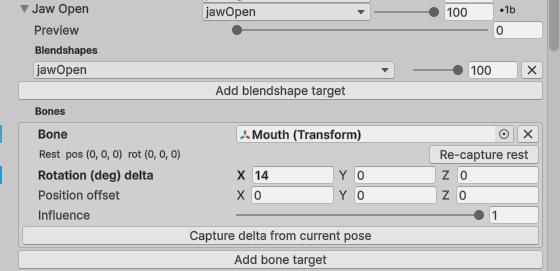
Assign the Bone and its current local pose is captured as the rest pose immediately — so do this with the rig neutral, or press Re-capture rest afterwards. Then enter the pose the expression should reach, either by typing into Rotation (deg) delta and Position offset, or by posing the bone in the Scene view and pressing Capture delta from current pose. Influence scales the whole target. Verify with the row’s Preview slider: 0 is rest, 1 is the captured pose.
Three rules that will otherwise bite:
- A bone may appear in only one mapper. Several rows within one mapper may share a bone and accumulate; two mappers claiming the same bone is an error.
- Bones must be descendants of the Face Animator’s transform or their curves are skipped when baking.
- Eye bones belong to the Eyes Rotation Mapper, not here. A bone claimed by both is an error.
Reusing a mapping
Press Save As… in the mapper’s Preset row to write a FaceBlendsPreset
asset, then drop it into the Preset field on the next character and press
Load. Save overwrites the selected preset.
A preset stores blendshape and bone names, not object references. Blendshape names must match the new mesh exactly — loading a preset does not re-run the fuzzy auto-map — and bones are resolved by searching the transforms under the mapper’s own GameObject, so bone targets only transfer when the mapper sits inside the rig. The console reports exactly what was applied and what it could not find.
2. Face Animator
Add it to the character root and drag every mapper into Blendshapes Configuration → Blends Mappers. Any renderer whose mapper is not listed will not move.
Generate animation in Editor
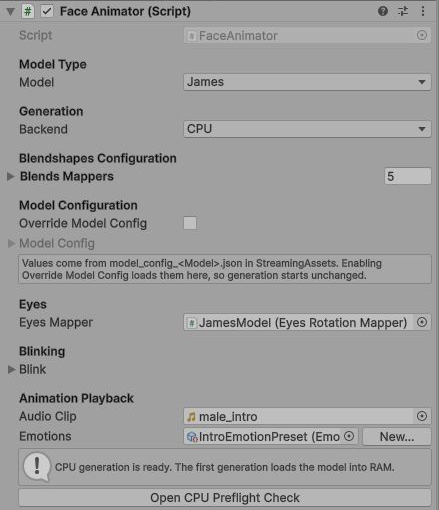
Model Type — which Audio2Face-3D model generates the animation: Claire, James or Mark. Each was trained on a different performer and produces a different speaking style. This is a performance style, not a character: it has nothing to do with what your character looks like, and Claire will drive a male character perfectly well. Try all three on the same audio.
Audio Clip, under Animation Playback — the speech to animate. Full has no
edition length cap; Lite generates only the first five seconds. Mono or stereo
clips at supported sample rates are resampled to 16 kHz mono. No
other preparation is needed, though a clip whose import Load Type prevents
AudioClip.GetData from returning samples cannot be read.
Keep CPU selected in Generation > Backend. Full can explicitly choose NVIDIA GPU; Lite offers CPU only. An older Lite scene saved with NVIDIA GPU selected must be switched to CPU. Then enter Play mode — outside it the inspector says so and Generate is disabled — press Generate, and press Play to preview the result. Stop ends it early and resets the face to neutral. Generation runs on a background thread, so the Editor stays usable.
The first CPU generation loads the ONNX model. The sample scene’s Prewarm button can do that ahead of time; Release CPU frees the shared context after queued generation finishes. Completed animations remain playable. NVIDIA GPU in Full may build a TensorRT engine on its first run. Changing the AudioClip or other generation inputs invalidates the generated result; generate again.
Saving an AnimationClip
Once animation exists, a Create AnimationClip button appears. It writes a
standard Unity AnimationClip, which must be saved inside your project’s
Assets folder. The button is only there while generated data exists, which
means before you leave Play mode — leaving discards it.
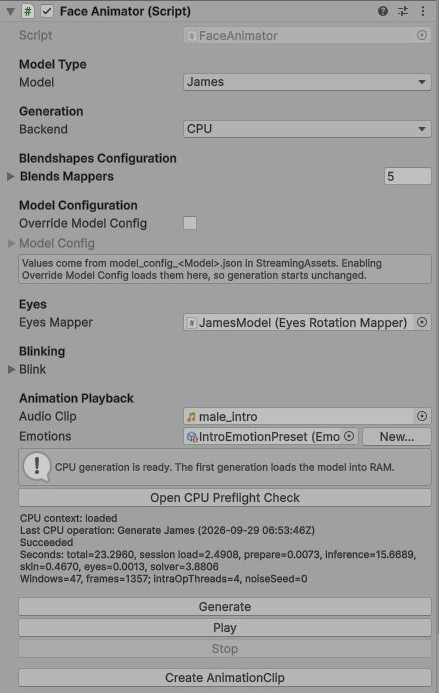
What lands in the clip: one curve per mapped blendshape per renderer, rotation curves for every driven bone (plus position curves only for bones some row actually offsets), the procedural blink, and the eye rotations if an Eyes Rotation Mapper is assigned. Tangents are smoothed and the clip is a normal non-legacy clip.
It has no dependency on the plugin, the SDK or an NVIDIA GPU, so it plays from an Animator or Timeline on any platform Unity builds for. Three things to know:
- Curve paths are relative to the GameObject holding the Face Animator, so moving that component to a different level of the hierarchy invalidates the clip. Put it on the character root and keep it there.
- Weights are baked in when the curves are written. Changing a mapper weight afterwards means generating and saving again.
- Set a non-zero blink seed before baking a set of clips, or every bake blinks at different moments and re-baking one line makes it inconsistent with the rest.
The sample scene
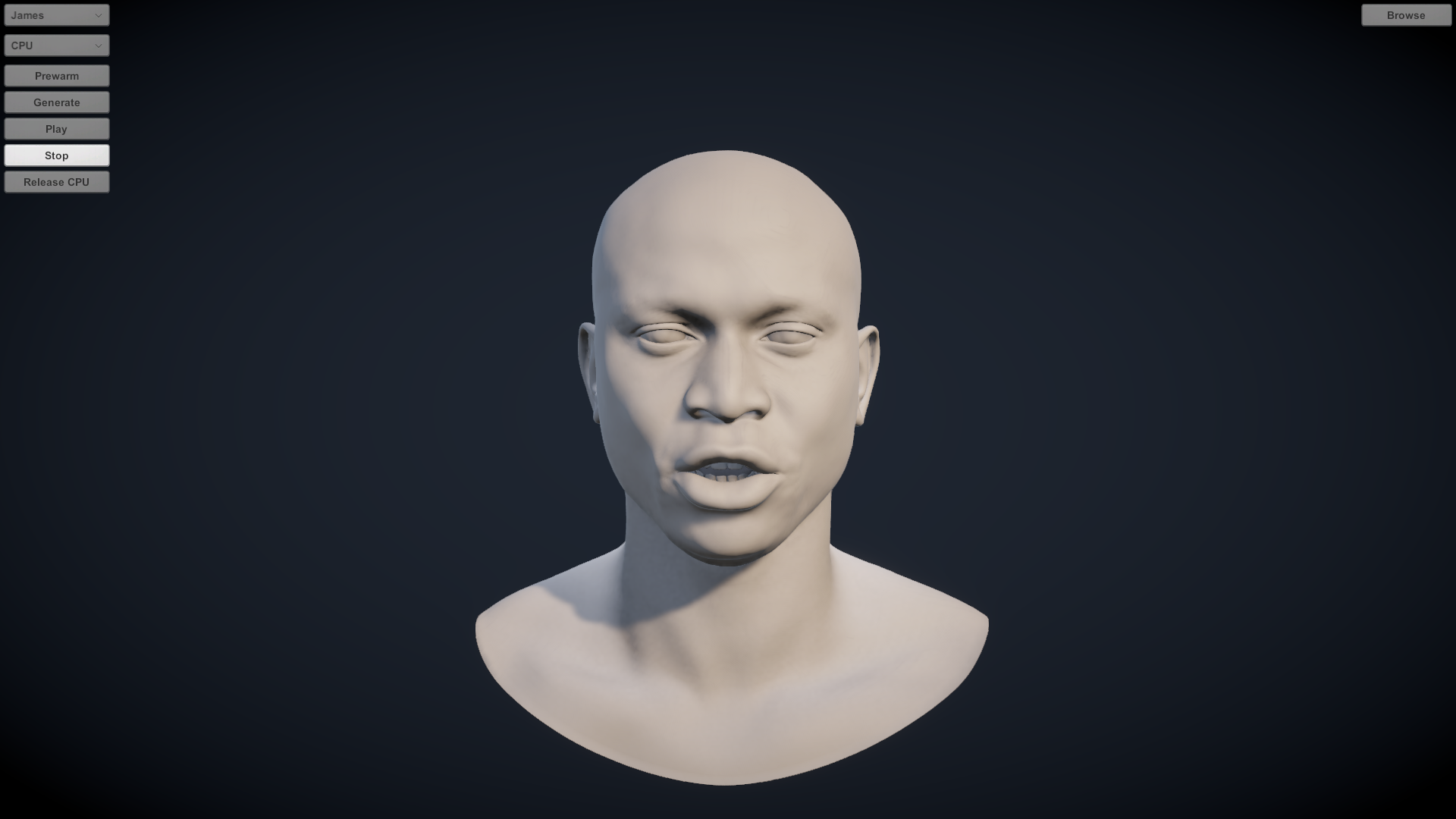
Assets/DevEloop/AudioFaceAnimator/Scenes/AudioFaceAnimator.unity has all three
characters set up, a model selector, generation controls and a file browser for
loading a WAV from disk. It is the quickest way to confirm the plugin works on
your machine, and a working reference for wiring the API to UI.
For the sample’s buttons, install Input System (com.unity.inputsystem
1.14.2) through Window → Package Manager. Without it, the scene’s
EventSystem has a missing UI component and buttons may not respond.
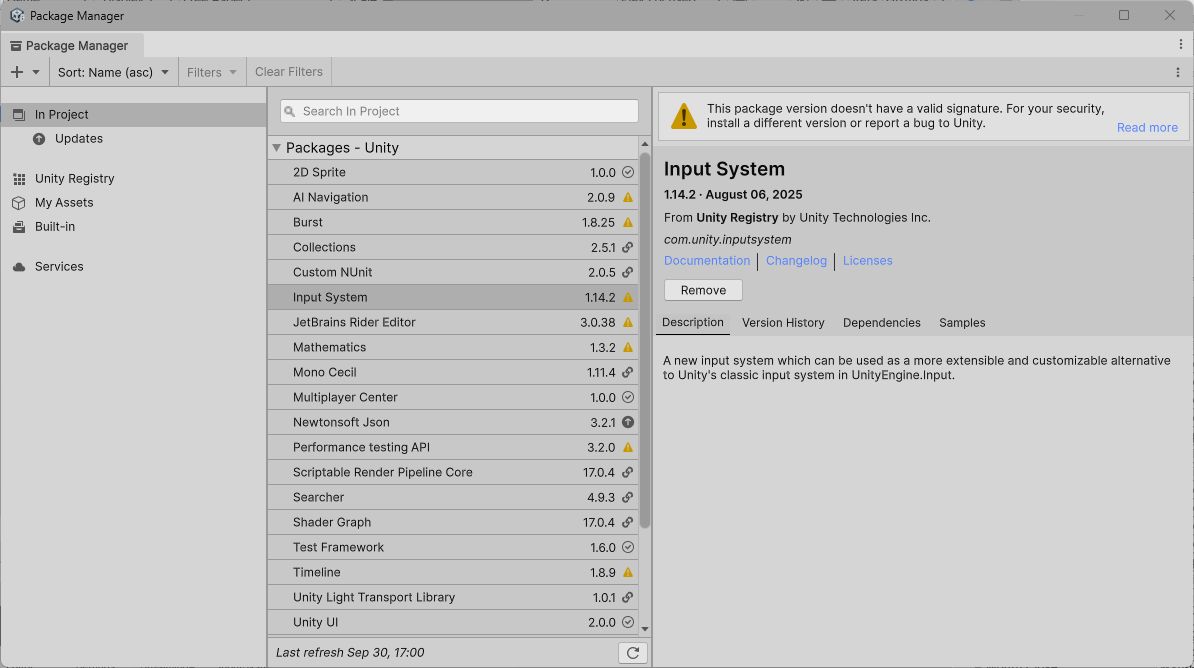
Input System 1.14.2 in Package Manager. The capture also shows a package signature warning from this Editor; it does not demonstrate a clean signature check. Generation through the Face Animator Inspector or API works independently of this sample UI dependency.
Generation processes a complete audio clip. Streaming audio generation is not supported. CPU and GPU use different solvers, so their facial poses can differ.
Emotions
Without a preset the model is driven with a neutral emotion, which reads as a competent but flat performance. An Emotion Preset colours it.
Press Create… next to the Emotions field on the Face Animator: it saves a new preset asset and assigns it in one step. An existing preset can be dropped into the same field, and presets can also be made from Assets → Create → DevEloop → Audio Face Animator → Emotion Preset.
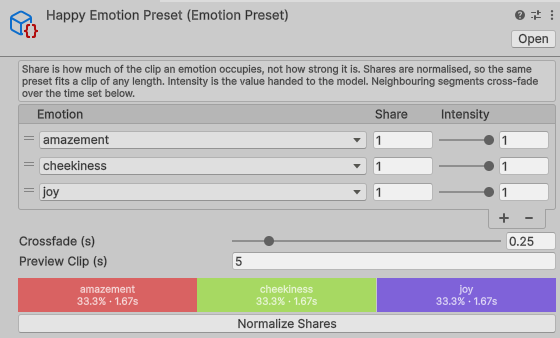
A preset is an ordered list of segments, read left to right across the clip:
| Emotion | Share | Intensity |
|---|---|---|
| fear | 0.1 | 1 |
| anger | 0.3 | 1 |
| fear | 0.4 | 0.6 |
| joy | 0.2 | 1 |
Share is how much of the clip the segment occupies, not how strong it is. Shares are normalised, so they do not have to add up to anything and the same preset fits a clip of any length — the example above gives 10%, 30%, 40% and 20% of whatever clip you generate from, and writing it as 1, 3, 4, 2 means exactly the same thing. Normalize Shares rewrites them as fractions of one, which changes the numbers and not the result.
Intensity is the value handed to the model, 0 to 1. Start around 0.5 and raise it until the performance reads the way you want; 1 is the strongest the model accepts, and anything above is clamped.
Crossfade is how long one segment takes to blend into the next, in seconds (0–2, default 0.25). It is applied symmetrically around each boundary and clamped per boundary, so a segment is never swallowed by its own transitions; a segment too short to hold anything becomes a brief peak instead. Raise it if transitions pop.
The coloured bar under the list previews the result — each slice shows its emotion, its percentage and its duration against Preview Clip (s), which only scales the seconds shown. The preset itself is never tied to a particular clip.
The available emotions come from the model, and are listed in network_info.json:
amazement, anger, cheekiness, disgust, fear, grief,
joy, outofbreath, pain and sadness. A segment carries one emotion
at a time; an emotional rise and fall is built from several segments, as fear
is above. Four ready-made presets ship in
Assets/DevEloop/AudioFaceAnimator/EmotionPresets/.
Emotions are a generation-time input, so assign the preset before generating:
faceAnimator.Emotions = myEmotionPreset;   // null goes back to neutral
await faceAnimator.GenerateAsync();
Eyes and blinking
The model drives the face but produces almost no eyelid motion, and its eye rotations need bones to apply them to. Both gaps are filled inside Unity.
Blinking
Generated in Unity and mixed over the model’s output, both during playback and at
bake time. It is on by default in the Blinking section of the Face
Animator, and needs eyeBlinkLeft and eyeBlinkRight mapped to real
blendshapes — without them there is no blink and no warning either. eyeSquint*
and eyeWide* are used as well when mapped, so the lower lid follows and a wide
eye does not fight a closed lid.
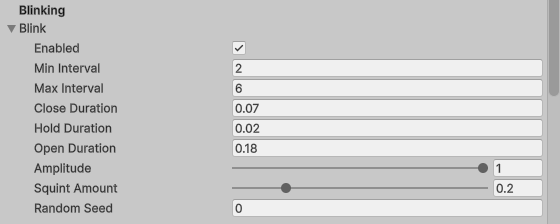
| Field | Default | What it does |
|---|---|---|
| Enabled | on | Turn it off if your own system already blinks |
| Min / Max Interval | 2 / 6 s | The random pause between blinks. Narrow it to 1–2.5 s while checking that blinking works at all — with the default range a short clip may show one blink or none |
| Close / Hold / Open Duration | 0.07 / 0.02 / 0.18 s | Real blinks close fast and open slower. Raise both for a tired character |
| Amplitude | 1 | How far the lids travel; 0.6 gives half-blinks |
| Squint Amount | 0.2 | How much eyeSquint comes along |
| Random Seed | 0 | 0 gives different timing on every playback and every bake; any other value is repeatable |
Blink weights pass through the mapper like any other weight, so a blink shape with max weight 50 blinks only halfway. Tune the amplitude or the ceiling, not both at once.
Eye rotation and gaze
Add an Eyes Rotation Mapper component and assign it to the Face Animator’s Eyes field. With that field empty the eyes are simply skipped, and nothing is logged — it is the most common reason for “the eyes still don’t move”.
Point Right Eye → Bone and Left Eye → Bone at the two eye bones, with the rig at rest; each bone’s local rotation is captured as its rest pose on assignment. Then use the component’s Preview pitch and yaw sliders to calibrate: the mapper rotates each bone about a Pitch Axis and a Yaw Axis in its own local space, and rig conventions differ. If an eye rolls instead of turning, change the axis; if it moves the right way but reversed, set that eye’s Pitch Scale or Yaw Scale to −1. Both eyes have independent axes and scales, which is what a mirrored rig needs. Stop preview returns them to rest.
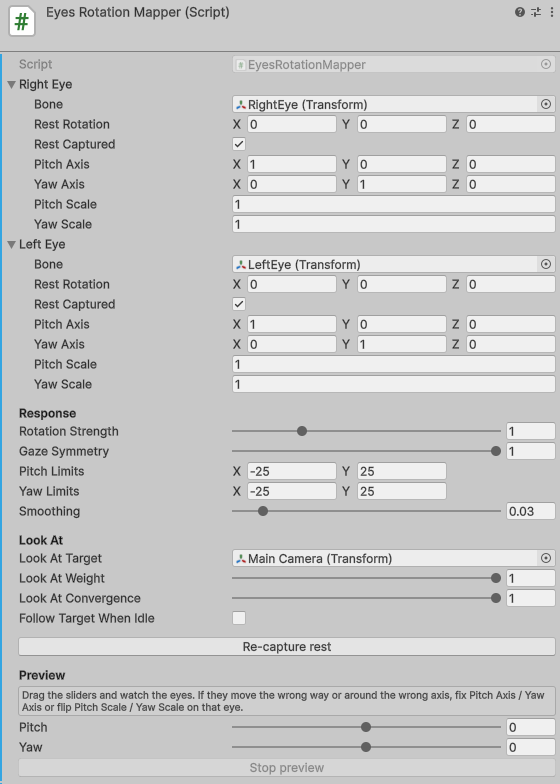
| Field | Default | What it does |
|---|---|---|
| Rotation Strength | 1 | Scales the model’s gaze for both eyes. 0 freezes it while leaving Look At working |
| Gaze Symmetry | 1 | Blends both eyes toward their average. 1 keeps them parallel |
| Pitch / Yaw Limits | ±25° | A hard clamp on where the eyes can point — useful for keeping the eyeball inside the lid opening |
| Smoothing | 0.03 s | Raise toward 0.08 to calm twitchy eyes, lower for snappier saccades |
| Look At Target | none | A transform to hold: the camera, the player’s head, a marker. Its contribution is added to the audio-driven gaze, so the performance still reads on top of the eye contact |
| Look At Weight | 1 | Scales that contribution |
| Look At Convergence | 1 | 1 aims each eye from its own position, giving true convergence; lower it if a close target looks cross-eyed |
| Follow Target When Idle | off | Keeps eye contact between lines, not only during them |
The eye bones must not appear in any Face Blends Mapper, and both blink and eye rotation are included when you press Create AnimationClip. One limitation there: a Look At target is sampled once, at bake time, at its current position — a target that moves at runtime cannot be baked, so either keep the plugin’s own playback or clear the target and drive eye contact yourself.
Tuning the solver
When the animation is close but too soft, too strong or too twitchy, tick
Model Configuration → Override Model Config. The fields are filled from
model_config_<Model Type>.json in StreamingAssets and start being sent to the
engine, so generation continues unchanged until you actually move something.
Change one parameter at a time and regenerate.
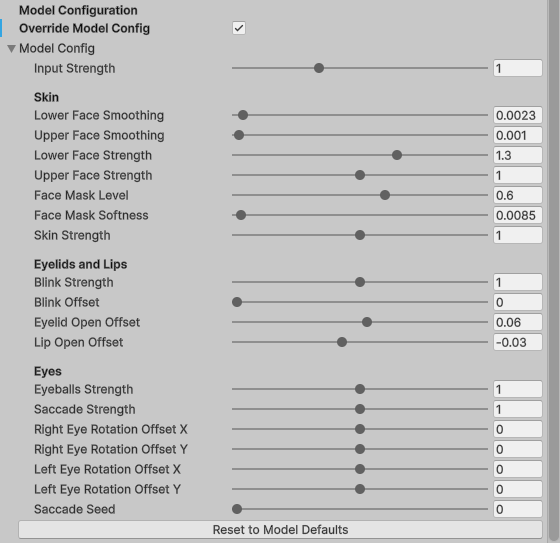
| Parameter | Range | Default | What it does |
|---|---|---|---|
| Input Strength | 0–3 | 1 | How hard the audio drives the whole face. Raise for a mumbling take |
| Lower Face Strength | 0–2 | 1.3 | Jaw and mouth travel |
| Upper Face Strength | 0–2 | 1 | Brows and eyes |
| Lower Face Smoothing | 0–0.1 | 0.0023 | Raise to calm a twitchy mouth, at the cost of crispness |
| Upper Face Smoothing | 0–0.1 | 0.001 | The same for the upper face |
| Skin Strength | 0–2 | 1 | Overall skin deformation |
| Face Mask Level / Softness | 0–1 / 0.001–0.5 | 0.6 / 0.0085 | Where the model blends between upper and lower face |
| Lip Open Offset | −0.2–0.2 | −0.03 | Static lip separation; negative closes the mouth at rest |
| Eyelid Open Offset | −1–1 | 0.06 | Static eyelid opening |
| Blink Strength | 0–2 | 1 | The model’s own eyelid motion, which is almost nothing — real blinks come from the procedural blink above |
| Eyeballs / Saccade Strength | 0–2 | 1 / 1 | Audio-driven gaze, and the random saccade layer on top of it |
| Saccade Seed | 0–4999 | 0 | Changes the random gaze pattern |
Reset to Model Defaults reloads the values for the current Model Type; unticking the checkbox hands control back to the engine entirely. Values are clamped to the ranges the engine accepts, with a warning if a hand-edited JSON file is out of range.
Note the difference between this and a mapper’s max weight: these parameters change the whole performance, a max weight fixes one expression on one rig.
Generate animation at runtime
Runtime generation in a standalone player is a full-version feature; Lite generates in the Editor only. Full generates on CPU by default in Windows x64 Mono and IL2CPP Players. Baked clips can play on other Unity platforms.
using DevEloop.AudioFaceAnimator;
using UnityEngine;

public class Example : MonoBehaviour
{
    public FaceAnimator faceAnimator;
    public AudioClip clip;

    public async void Speak()
    {
        if (faceAnimator == null || clip == null || faceAnimator.IsGenerating)
            return;

        faceAnimator.Backend = AnimationBackend.Cpu;
        faceAnimator.AudioClip = clip;
        await faceAnimator.GenerateAsync();

        if (!faceAnimator.HasAnimationData)
            return;          // generation failed; the console says why

        faceAnimator.Play();
    }
}
GenerateAsync() does not throw for ordinary failures — a missing library or
model file, or an unavailable selected backend. It logs the reason and leaves
HasAnimationData false, so check that rather than catching exceptions. Use
IsGenerating to disable your UI while it runs, as the sample scene does, and do
not start a second generation while one is running.
| Member | What it does |
|---|---|
AudioClip AudioClip { get; set; } |
The clip to animate. Assigning a different clip discards the generated animation. |
AnimationBackend Backend { get; set; } |
CPU by default. Full also supports AnimationBackend.Nvidia for NVIDIA GPU; there is no automatic fallback. |
AudioFaceModel model |
Claire, James or Mark. |
List<FaceBlendsMapper> blendsMappers |
The mappers to drive. |
EmotionPreset Emotions { get; set; } |
The preset the next generation uses; null is neutral. |
EyesRotationMapper EyesMapper { get; set; } |
The eye bones to drive, or null for no eye rotation. |
ProceduralBlink Blink { get; } |
The blink settings. Only Enabled is public; the timings are inspector-only. |
bool OverrideModelConfig { get; set; } / ModelConfig Config { get; } |
Whether the solver parameters are sent, and the values themselves. |
void ResetModelConfigToDefaults() |
Reloads model_config_<Model>.json into Config. |
Task GenerateAsync() |
Generates on a background thread. Await it. |
void Play() / void Stop() |
Play the animation with its audio; stop and reset to neutral. |
AnimationClip CreateAnimationClip(string name = "") |
Builds a clip from the current animation, or null if nothing was generated. It returns the clip; saving the asset is the caller’s job. |
bool IsGenerating / bool HasAnimationData / bool IsPlaying |
State, for driving your own UI. |
For audio that is not an asset in your project — a file the player picks, or one
downloaded — the plugin includes a WAV loader, which returns null and logs on
failure:
AudioClip clip = await AudioUtils.LoadWavClipAsync(path);   // local path or URL
if (clip != null)
    faceAnimator.AudioClip = clip;
FaceAnimator adds an AudioSource in Awake if the object has none, so a
character instantiated at runtime needs no extra setup for playback.
Shipping a standalone build
Run Sync StreamingAssets before building — the plugin reads
Application.streamingAssetsPath, and the copy inside the package folder is a
source, not what ships. Include audio2face-cpu.dll, onnxruntime.dll and
the model files for CPU. Full also includes its NVIDIA GPU DLLs. Check the
Windows x64 plugin importers and the built Player’s Plugins/x86_64 directory.
To prepare CPU generation ahead of a line, use AnimationGenerator from an
async method entered on Unity’s main thread:
var generator = new AnimationGenerator();
if (!await generator.PrewarmAsync(AnimationBackend.Cpu))
    return; // See the Unity console for the failure.

faceAnimator.Backend = AnimationBackend.Cpu;
await faceAnimator.GenerateAsync();
if (faceAnimator.HasAnimationData)
    faceAnimator.Play();

// Optional when generation is finished; affects the shared CPU context.
await generator.ReleaseCpuResourcesAsync();
Release waits for preceding queued operations. Completed animations remain playable; a later generation loads the context again. CPU runs on machines without NVIDIA GPU, CUDA or TensorRT.
The engine advice below applies only when Full explicitly selects NVIDIA GPU. Each target machine also needs the external TensorRT installation. For version 2.0.0, keep the GPU Player and model paths ASCII-only: a GPU native crash was reproduced with a path containing Unicode characters.
Keep network.onnx in StreamingAssets and let the first generation call build
an engine on each player’s machine. Your players’ GPUs are not yours, and the
engine built on your machine will not load on most of theirs. There is no way to
build one engine covering many architectures, so this is the only approach that
works everywhere. The build takes about a minute, happens once per machine, and
is cached under Application.persistentDataPath, which stays writable even when
the game is installed somewhere read-only.
A minute of silence looks like a hang, so pre-warm the engine behind a loading screen of your own rather than letting it land on the player’s first line:
EngineStatus status = EngineProvisioner.GetStatus(out string detail);

if (status == EngineStatus.Unavailable)
    return;                        // no qualifying GPU; log `detail` and fall back

if (status == EngineStatus.NeedsBuild)
    await Task.Run(() => EngineProvisioner.EnsureEngine(false, Report, out string error));

// Called on the worker thread: store the values, render them on the main thread.
// Return false to cancel a build in progress.
bool Report(string phase, float progress) { Phase = phase; Progress = progress; return true; }
EnsureEngine blocks for about a minute, so it belongs on a worker thread.
GetStatus checks NVIDIA GPU only. If it is unavailable, explicitly choose
CPU or play an already baked AnimationClip. Baked clips play on any platform
Unity supports, without native generation libraries.
PluginVersion.GetPackageState(out error) identifies the edition without
loading a backend. PluginVersion.GetState(AnimationBackend.Cpu, out error)
checks CPU library/package availability; the no-argument GetState() also
checks CPU. Neither prepares an ONNX session or proves generation will succeed.
Pass AnimationBackend.Nvidia to check NVIDIA libraries/package state, and use
EngineProvisioner.GetStatus for GPU/engine readiness:
PluginState |
Meaning |
|---|---|
Ready |
Full package data is present; GetState also checks the selected backend’s libraries. Engine/session preparation can still fail. |
LiteEdition |
Lite restrictions apply, or a selected backend is unavailable in Lite. Lite CPU still generates in the Editor. |
NativePluginUnavailable |
The selected backend’s libraries cannot load; use its preflight report for the reason. |
ModelDataMissing |
StreamingAssets has not been synced or model data is incomplete. |
PluginVersion.Version is the shipped version string. The older
IsModelComplete() is kept for compatibility; new code should call
GetPackageState or GetState(backend, out error) as appropriate.
You can additionally ship a network.trt in
Assets/DevEloop/AudioFaceAnimator/StreamingAssets, copied out of your engine
cache. Players whose GPU it fits skip the build; everyone else falls back to the
ONNX. It only helps players on the same GPU architecture as the machine that
built it, so treat it as a minor optimisation, never a substitute.
If your game only needs a fixed set of lines, you probably want none of this in the build. Generate in the Editor, save AnimationClips, and leave the plugin’s StreamingAssets out — the clips carry no dependency on it, and local inference is not small.
Skills for AI coding assistants
Seven skills ship inside the package, under
Assets/DevEloop/AudioFaceAnimator/AI/Skills/. Each is a plain SKILL.md
describing one area of the plugin in the terms an assistant needs in order to act
on it — the real component and API names, what each field does, and the failures
worth checking first.
| Skill | Covers |
|---|---|
audio-face-animator-setup-and-overview |
Installing and verifying, the preflight check, telling the editions apart, and an index of the rest |
audio-face-animator-prepare-character |
Face Blends Mapper, bone targets, reusing a mapping |
audio-face-animator-generate-animation |
Generating, previewing and baking an AnimationClip |
audio-face-animator-emotions |
Emotion presets — shares, intensity, crossfade |
audio-face-animator-eyes-and-blinking |
Eyes Rotation Mapper, axis calibration, gaze, procedural blinking |
audio-face-animator-runtime-and-shipping |
The scripting API, pre-warming the engine, what a build carries |
audio-face-animator-troubleshooting |
What each failure means and what to do about it |
Point your assistant at that folder, or copy the skills into wherever it reads them from. They are ordinary Markdown with YAML frontmatter and carry no dependency on any particular tool, and both editions ship the same set.
Version 2.0.0 documentation correction: some instructions bundled in the package still describe TensorRT as included and omit the sample’s Input System dependency. Follow this page for those requirements: TensorRT is installed separately for Full GPU generation, and Input System is needed for the sample UI.
Worth doing because an assistant working from the plugin’s name alone will invent an API that reads plausibly and does not exist. These describe what is actually there.
Troubleshooting
Open the preflight check, select the backend used by the component and read its failed gate. If every line there passes, open the Unity console. Every failure reports the actual reason, including what TensorRT itself said, and failures print a specific line followed by a generic one — the first is the useful one.
Setup and the selected backend
| Symptom | Cause and fix |
|---|---|
| CPU libraries missing or incompatible | Restore the bundled CPU DLL and ONNX Runtime, restart Unity, then select Checks > CPU in preflight. No NVIDIA GPU or engine is needed. |
TensorRT missing, incompatible, or a builder resource such as nvinfer_builder_resource_sm86_10.dll is missing |
Install the complete required TensorRT ZIP, add its bin to PATH, restart Unity and Hub, then press Check Installation. See GPU setup. Re-importing the asset does not install TensorRT. CPU remains available. |
Sample scene buttons do not respond, or EventSystem has a missing component |
Install com.unity.inputsystem 1.14.2 through Package Manager. Inspector/API generation does not depend on the sample UI. |
| A GPU Player crashes from a path containing non-ASCII characters | For 2.0.0, use ASCII-only Player and model paths, or select CPU. |
| “No usable CUDA device” | NVIDIA GPU was selected but no supported device or driver was found. Update the driver or explicitly select CPU in Full. |
| The Face Animator says the selected backend cannot run | Open the matching preflight check; a CPU failure does not imply a GPU requirement. |
| The Face Animator shows “The model files have not been synced yet” | Run Tools → AudioFaceAnimator → Sync StreamingAssets and press Copy All Files. Until that finishes there is nothing to read an edition out of either, which is why the banner does not name one. |
| “The TensorRT engine … cannot be loaded on this GPU” | A network.trt you supplied was built for a different architecture. Build one via Setup TensorRT Engine, or remove the file and let the plugin build from network.onnx. |
| “… is not a TensorRT engine (N bytes)” | A network.trt did not arrive intact — usually Git LFS storing a pointer instead of the file. Delete it and rebuild. |
| “no execution context could be created” | Not enough free VRAM. Close other GPU-heavy applications. If you enabled the full batch range, rebuild with it off. |
| “network.onnx is missing” or damaged model data | Run Tools → AudioFaceAnimator → Sync StreamingAssets. trt_info.json exists only in Full for NVIDIA GPU. |
| The engine build fails or is very slow | Building needs several GB of free VRAM and disk. Close other GPU applications; the console shows what TensorRT reported. |
| The Sync window opens on every Editor start | Files still differ, usually because the sync was cancelled. Press Copy All Files and let it finish. |
| The engine rebuilds after a driver or plugin update | Expected: the cache key is the GPU signature plus a fingerprint of network.onnx. |
| Animation is capped at five seconds, or a ⚠️ LITE VERSION banner appears | These are Lite’s expected generation limits. In Full, re-sync and re-import incomplete model data. An older Lite scene with NVIDIA GPU selected needs an explicit switch to CPU. |
Mapping and playback
| Symptom | Cause and fix |
|---|---|
| Generate is greyed out | It is enabled only in Play mode, and only with an Audio Clip assigned. |
| Create AnimationClip is missing | There is no generated data — usually because Play mode was left. Generate again and bake before leaving. |
| Generation succeeds but nothing moves | The character is not mapped. Check the mappers are listed in Blends Mappers, and drag a row’s Preview slider to 1 to test the routing on its own. |
| “Mapper X has nothing to drive, skipping” | Every blendshape name in that mapper is missing from the mesh, and it has no bones. Re-run auto-map, or check you assigned the right renderer. |
| The mapping list is empty | The renderer has no blendshapes, or none was assigned. Check you picked the face rather than the body, and that Import BlendShapes is enabled in the model’s import settings. |
| Most rows say None | The mesh uses a different convention. Viseme or phoneme shapes (A, E, viseme_aa) cannot be driven at all; ARKit names under unusual decoration can be mapped by hand. |
A blendshape popup shows <missing: name> |
The stored name is not on the current mesh — usually a preset loaded onto a different rig. Pick the right shape. |
| The mouth moves but the expression is flat | Only jaw and mouth shapes were matched. Check the brow, cheek, eye and nose rows. |
| Barely any movement from this audio | The model animates speech. Music, effects, heavy noise and silence produce little movement. Try a clean speech recording to confirm the plugin itself works. |
| “Animation data has no frames” | The clip yielded no samples. Check it contains audio, and that its import Load Type lets AudioClip.GetData read it. |
| “Bone ‘X’ is driven by two mappers” | Keep every bone in a single mapper. |
| “Eye bone ‘X’ is driven by both … and the eyes mapper” | Remove that bone from the Face Blends Mapper; the Eyes Rotation Mapper owns it. |
| “… is not a descendant of ‘Root’. Its curves are skipped” | The renderer or bone sits outside the Face Animator’s hierarchy. Move the Face Animator to a common ancestor. |
| “has no captured rest pose” | A bone was assigned while posed. Return the rig to rest and press Re-capture rest. |
| The face is stuck in an expression in the Editor | A row’s Preview slider or the eyes preview is still active. Collapse the row, press Stop preview, or select another object. |
| “Invalid Path — Please save inside the Assets folder” | The save panel pointed outside the project. |
Emotions, eyes and blinking
| Symptom | Cause and fix |
|---|---|
| The performance is unchanged after assigning an emotion preset | Emotions are a generation-time input. Generate again. |
| “Every segment is skipped, so generation falls back to neutral” | Every segment has an unknown emotion or a share of 0. Pick emotions from the popup and give each a share above 0. |
| “The model has no emotion named X” | Only the ten names listed above exist; matching is case-insensitive but spelling is not forgiven. |
| “produced segments shorter than one audio sample” | Too many segments for the clip length. Use fewer, or larger shares for the ones that matter. |
| Emotion transitions pop | Raise Crossfade; 0.25 s is a good default. |
| The eyes never move and the console says nothing | The Face Animator’s Eyes field is empty. This case is silent by design — check the field. |
| “has no eye bones assigned, so the eyes stay still” | The component is assigned but the two Bone fields are not. |
| The eyes roll instead of turning, or one eye mirrors the other | Wrong Pitch Axis / Yaw Axis for this rig, or a mirrored bone. Calibrate with the Preview sliders, and use a Scale of −1 to reverse a direction. |
| The eyes look cross-eyed, or the eyeball clips through the lid | Lower Look At Convergence, raise Gaze Symmetry, or tighten the Pitch / Yaw Limits. |
| No blinking at all | eyeBlinkLeft / eyeBlinkRight are not mapped to real blendshapes, or Enabled is off. Neither case warns. |
| Every bake blinks at different moments | Set a non-zero Random Seed. |
| Eye contact is lost in a baked clip | A Look At target is sampled once at bake time. Do not bake moving eye contact. |
| “the native plugin has no emotion support” / “no eye rotation support” / “returned no eye rotations” | The C# scripts and audio2face-unity.dll are from different versions. Re-import the package, then run Sync StreamingAssets. Generation still works; only the named feature is missing. |
Diagnostic log
For CPU, use Unity Console, Editor.log or Player.log, plus
Checks > CPU → Copy report for the latest CPU operation, timings and error.
The file logger below is for NVIDIA GPU in Full. It captures native SDK output that is not forwarded to the Unity console and is off by default.

In the Editor, open Tools → AudioFaceAnimator → Setup TensorRT Engine and
expand Diagnostic Log. Tick Write a log file and pick a Level — Debug
logs every step, Info the main ones, Error only failures. Change… moves the
file, Show opens the folder, and the setting is remembered between sessions and
re-applied after every recompile, in append mode — so turn it off again when you
are done.
From code, called on the main thread before generation starts:
using DevEloop.AudioFaceAnimator;

NativeLog.Enable(NativeLog.DefaultFilePath, NativeLogLevel.Debug);
// ... generate ...
NativeLog.Disable();
The default file is
%USERPROFILE%\AppData\LocalLow\<company>\<product>\DevEloop\AudioFaceAnimator\audio-face-animator.log.
Every line is flushed as it is written, so the log survives a crash. Unity’s
Player.log also carries the plugin’s managed logs, including engine-build progress.
Support
Press Copy report in the preflight check and paste the result into your message after selecting the affected backend. It carries the plugin and Unity versions, installed edition and displayed checks. CPU includes library information and the latest operation; NVIDIA GPU includes GPU, driver and engine information. Add the full console output alongside it — the messages identify the failure precisely, which makes most issues diagnosable at a glance. If neither is conclusive, turn on the diagnostic log, reproduce the failure and attach the file.