
The FBX Animations Importer plugin loads animation data directly from FBX
files at runtime and converts it into playable Unity AnimationClip objects. Use
it when animations have to arrive after the application is built, or when you
want to keep animation files outside the project rather than bundling everything
into it. The same importer runs in the Unity Editor when you simply want FBX
animations in your scene quickly.
Requirements
- OS: Windows. The native library that parses FBX files ships for Windows x64 only.
- Unity version: 6000.0.59f2 or newer.
- The target object’s hierarchy must match the FBX. Curves are addressed by node path, so the names and nesting in the scene have to line up with the names and nesting in the file.
Import in the Unity Editor
Open the importer window either way:
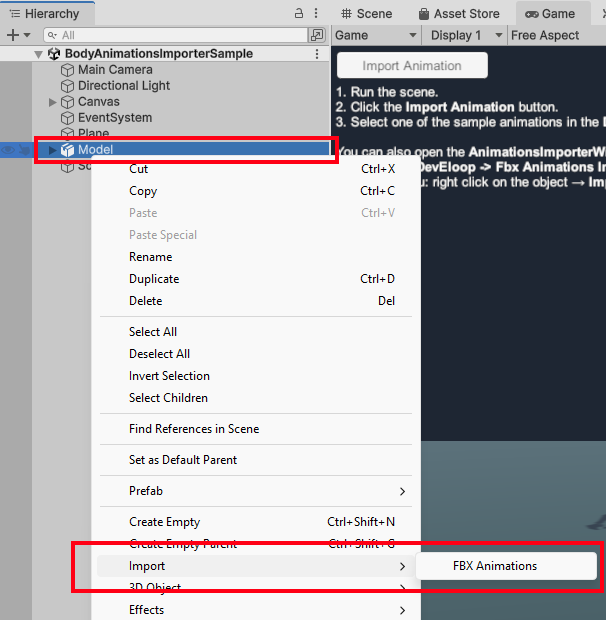
- Right-click the object that should receive the animation in the Hierarchy window and choose Import → FBX Animations. The object is filled into Target Object for you.
- Or open DevEloop → FBX Animations Importer from the main menu and pick the target yourself.
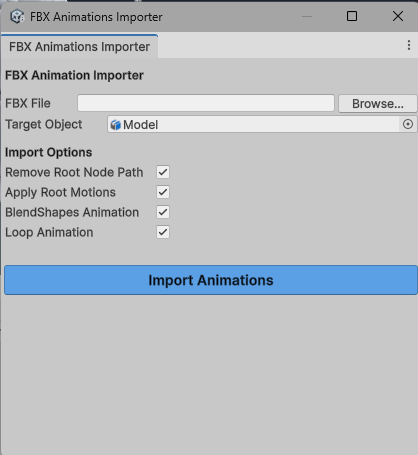
Point FBX File at a file — Browse… opens a file picker and remembers the folder — set the import options, and press Import Animations.
Every take in the file becomes its own clip, saved as an asset under
Assets/DevEloop/FbxAnimationsImporter/ImportedClips/ and named
<fbx file>_<take>.anim. An existing file of the same name is never overwritten
— the importer picks the next free name instead.
The clips then appear in a list at the bottom of the window. With a Target Object assigned, each one gets an Apply to Target button that plays it on that object straight away, so you can check a take without leaving the window.
Import at runtime
FbxAnimationsImporter is a plain class with no Editor dependency, so the same
two calls work in a build:
using System.Collections.Generic;
using UnityEngine;
using DevEloop.FbxAnimationsImporter;

public class LoadAnimation : MonoBehaviour
{
    public GameObject model;

    public void OnLoadClick(string fbxPath)
    {
        FbxAnimationsImporter importer = new FbxAnimationsImporter();

        List<AnimationClip> clips = importer.LoadAnimations(fbxPath);
        if (clips == null || clips.Count == 0)
        {
            Debug.LogError("No animations loaded.");
            return;
        }

        importer.ApplyClipToSceneObject(model, clips[0]);
    }
}
List<AnimationClip> LoadAnimations(string fbxFilePath)— reads the file and builds one clip per take. Returnsnulland logs the reason if the file cannot be read or parsed, so check the result before using it.fbxFilePathis a full path on disk, not anAssets/path.void ApplyClipToSceneObject(GameObject gameObject, AnimationClip clip)— adds anAnimationcomponent to the object if it has none, registers the clip and plays it, looping according to Loop Animation.
Reading a file is synchronous and happens on the calling thread, so trigger it
from a button rather than from Update.
Imported clips are legacy clips
The importer builds legacy AnimationClips and plays them through the
Animation component, which is why ApplyClipToSceneObject adds one rather
than looking for an Animator. A legacy clip assigned to an Animator will not
play — Mecanim rejects it. If a clip has to be driven by an Animator or a
Timeline, clear the Legacy flag on the saved .anim asset in the
Inspector’s debug view first.
Import options
The four options are properties on FbxAnimationsImporter and toggles in the
window. All four default to on.
| Option | What it does |
|---|---|
| Remove Root Node Path | Drops the first segment from every node path, so curves are addressed relative to your target object rather than to the FBX’s own top-level node. Leave it on when the FBX wraps its rig in an Armature-style parent that your scene object does not have; turn it off when the scene hierarchy includes that node too. |
| Apply Root Motions | Off leaves the root node’s transform curves out, so the animation plays in place and the character does not travel. Blendshape curves on the root are still imported. |
| BlendShapes Animation | Imports blendshape weight curves, addressed to the SkinnedMeshRenderer on each node. Turn it off for skeletal-only takes. |
| Loop Animation | Chooses the wrap mode ApplyClipToSceneObject plays with — Loop or Default. It affects playback only; it is not baked into a clip saved from the window. |
Change one at a time and watch the result. Remove Root Node Path is the one that decides whether an animation drives anything at all, because it is what lines the FBX’s paths up with your scene.
What the importer reads
| Takes | Every animation stack in the file becomes a clip, named after the stack. A file holding four takes yields four clips in one call. Only the first animation layer of each stack is read. |
| Transforms | Position, rotation and scale for every node in the file’s hierarchy, as local values. |
| Blendshapes | Weight curves, on Unity’s 0–100 scale, matched to blendshapes by name. |
| Frame rate | Taken from the file’s own settings, falling back to 30 fps. Curves are resampled uniformly at that rate across the take, rather than carrying the original keyframes across. |
| Units | Converted to metres using the file’s unit scale, so an FBX authored in centimetres — which is most of them — arrives at the right size with nothing to set. |
| Axes | Converted from whatever axis system the file declares to Unity’s Y-up, left-handed one. |
| Rotations | Imported as quaternion curves, made continuous across sign flips so a bone cannot snap halfway through a take. |
Materials, meshes, skinning and blendshape geometry are not imported — this plugin reads animation only. The model has to be in the scene already; what the importer supplies is the movement.
Sample scenes
Two scenes in Assets/DevEloop/FbxAnimationsImporter/Scenes:
- BodyAnimationsImporterSample — a character and an Import Animation
button. Enter Play mode, press it, and choose one of the FBX files in
Animations/Body. - BlendshapesAnimationsImporterSample — the same, on a head, with the facial
takes in
Animations/Facial.
Both use FbxAnimationsImporterSample.cs, which is worth reading as a working
reference: it opens a native file dialog through FileDialogUtils — a
Windows file picker that works in a build, where EditorUtility.OpenFilePanel
does not exist — then loads and applies the first clip.
Troubleshooting
| Symptom | Cause and fix |
|---|---|
| “FBX animation extraction failed.” | The native library could not open or parse the file. Check the path is a full path to a file that exists, and that the file really is an FBX. |
| “Empty JSON returned from native plugin.” or “Failed to parse animation JSON.” | The file was read but produced nothing usable. Re-export it from your DCC tool. |
| “No animation clips were found in the selected FBX file.” | The file has no animation takes in it — a model-only FBX. Export the animation, not just the mesh. |
| The clip plays but nothing moves | Node paths do not match. This is almost always Remove Root Node Path: toggle it and re-import. Otherwise the scene hierarchy’s names differ from the FBX’s. |
| The character animates but does not travel | Apply Root Motions was off. |
| Nothing happens when the clip is on an Animator | Imported clips are legacy clips — see above. Play them with an Animation component. |
| No facial animation | BlendShapes Animation was off, or the blendshape names in the FBX do not match those on the target’s SkinnedMeshRenderer. |
| The animation does not loop at runtime | Loop Animation applies when ApplyClipToSceneObject plays the clip. Set it before applying, or set wrapMode on the Animation component yourself. |
A DllNotFoundException for fbx_animations_importer |
The plugin runs on Windows only, and the native library must be in the build. |
| Only part of a blended animation came through | Only the first animation layer of each take is read. Merge the layers on export. |
Support
For questions, bug reports or suggestions, include your Unity version, the FBX you were importing and the full console output — the plugin logs the reason for every failure it can detect.