
The FBX Runtime Exporter plugin allows you to seamlessly export objects from your Unity scene into FBX format, both at runtime and within the Unity Editor.
What gets exported
| Exported | Details |
|---|---|
| Node hierarchy | Every transform under the object you export, with its local position, rotation and scale. |
| Meshes | From MeshFilter and SkinnedMeshRenderer. Submeshes become separate face subsets, so per-submesh materials survive. |
| Mesh channels | Normals, UV0 through UV8 and vertex colours. |
| Skinning | Bone weights and indices, plus the bind pose of every bone. |
| Blendshapes | Every blendshape on every skinned mesh. |
| Materials | Diffuse colour, transparency, emissive colour and normal-map strength. Built-In, URP and HDRP shaders are all read. |
| Textures | Diffuse, normal map and emission, re-encoded as PNG and embedded in the FBX. |
| Animation | Clips found on the Animation and Animator components of the exported hierarchy — translation, rotation, scale and blendshape curves. Humanoid, generic and legacy clips are all exported. |
| Terrain | The heightmap as a mesh, optionally with its tree instances. |
Nothing else is captured: lights, cameras, particles, physics colliders, LOD groups and scripts are outside what an FBX file carries here.
Platforms and requirements
- Unity version: 2021.3 or newer.
- Supported platforms: Windows, Linux — the Editor on either, and standalone builds for either.
Export from the Unity Editor
Right-click the object in the Hierarchy window and choose Export → FBX.
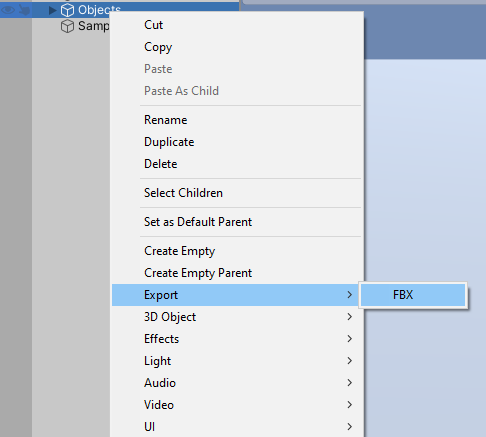
The FBX Exporter window opens with that object as its subject. Set the options, press Export, and the window closes and refreshes the asset database.
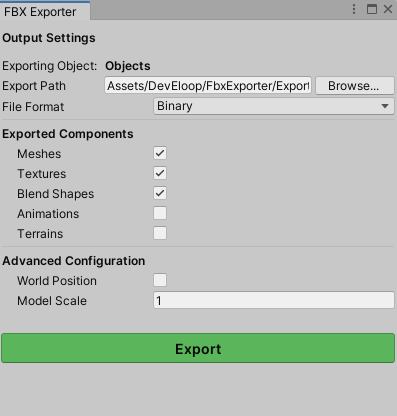
| Setting | What it does |
|---|---|
| Export Path | Defaults to Assets/DevEloop/FbxExporter/ExportedModels/<object name>.fbx. Browse… opens a save dialog, and the folder is created if it does not exist. |
| File Format | Binary (smaller, the usual choice) or Ascii (a readable, diffable text file). |
| Meshes | Off exports the node hierarchy alone — a skeleton with no geometry. |
| Textures | Off keeps material colours but embeds no image data, which is much faster and much smaller. |
| Blend Shapes | Off skips blendshape geometry. |
| Animations | Off by default. On, every clip reachable from the exported hierarchy is written — see Animation. |
| Terrains | Off by default in the window. On, a Terrain component on the object you right-clicked is converted to a mesh. |
| Terrain Trees | Appears once Terrains is on. Instantiates the terrain’s tree prototypes as real objects so they are exported with it. |
| Include Inactive Objects | On by default: inactive GameObjects and disabled renderers are exported anyway. Turn it off to export only what is visible. |
| World Position | Off exports the model at the origin, keeping its local rotation and scale. On exports it at its world position. |
| Model Scale | Multiplies every vertex, every node position and every bind pose. Use 100 for a tool that works in centimetres. |
| Blends Weight Scale | Appears once Animations is on. Multiplies exported blendshape animation weights. |
| Animation FPS | Appears once Animations is on. The rate at which humanoid clips are baked, and the frame rate written into the file. |
Materials that ship with the sample scene are authored for the built-in render pipeline. In a URP or HDRP project they render magenta, and the plugin offers to convert them the first time it loads — see Sample materials in URP and HDRP.
Export from code
The same class does the work in the Editor and in a build:
using UnityEngine;
using DevEloop.FBXExport;

public class ExportButton : MonoBehaviour
{
    public GameObject objectToExport;

    public void OnExportClick()
    {
        if (!FbxExporter.IsFbxExportSupported)
            return;                       // not Windows or Linux

        string outputFbxPath = System.IO.Path.Combine(
            Application.persistentDataPath, objectToExport.name + ".fbx");

        FbxExporter fbxExporter = new FbxExporter();
        fbxExporter.ExportAnimations = true;
        fbxExporter.ModelScale = 100.0f;

        if (fbxExporter.ExportObjectToFbx(objectToExport, outputFbxPath))
            Debug.Log("Exported to " + outputFbxPath);
    }
}
ExportObjectToFbx(GameObject model, string outputFbxFilename) returns true
on success. It creates the output directory if it is missing, and logs the
reason for every failure it can detect — a missing model, an empty path, an
unreadable mesh, a bone outside the exported hierarchy, an unsupported platform.
The call is synchronous and does its work on the main thread, so a large
character with textures will stall a frame; run it from a button, not from
Update.
FbxExporter properties
| Property | Default | What it does |
|---|---|---|
FileFormat |
Binary |
FbxFileFormat.Binary or FbxFileFormat.Ascii. |
ExportMeshes |
true |
When false, only the node hierarchy is written. |
ExportTextures |
true |
Embed textures as PNG. |
ExportBlendshapes |
true |
Export blendshape geometry from skinned meshes. |
ExportAnimations |
false |
Export the clips reachable from the hierarchy. |
ExportTerrain |
true |
Convert a Terrain on the exported root to a mesh. The Editor window defaults this to off instead. |
ExportTerrainTrees |
false |
Also export the terrain’s tree instances. |
ExportInactiveObjects |
true |
Export inactive objects and disabled renderers. |
ModelWorldPosition |
false |
Export at the world position rather than at the origin. |
ModelScale |
1.0 |
Multiplies vertices, node positions and bind poses. |
AnimationBlendsWeightScale |
1.0 |
Multiplies exported blendshape animation weights. |
AnimationFps |
30.0 |
Sampling rate for baked clips, and the file’s frame rate. |
IsFbxExportSupported |
— | Static. true only on Windows and Linux, and only if the native library loaded. |
An FbxExporter instance keeps no state between calls — it clears its internal
tables at the start of every export — so one instance can be reused, or a new
one created per export, whichever reads better.
Meshes must be readable in a build
In the Editor the plugin can read any mesh. In a build it cannot: Unity uploads mesh data to the GPU and frees the CPU copy unless the model asset has Read/Write Enabled ticked in its import settings. An unreadable mesh is skipped with
“the … mesh isn’t readable. It can’t be exported into FBX”
and the rest of the model still exports. This is the single most common surprise with runtime export, because it never appears while you are testing in the Editor. Tick Read/Write Enabled on every model you intend to export at runtime, and test in a real build.
Animation
Turn on ExportAnimations and, for every node in the exported hierarchy, the
plugin collects clips from an Animation component (all of its states) and from
an Animator component (all of the clips in its RuntimeAnimatorController).
Each clip becomes an animation take in the FBX, named after the clip.
How the curves are produced depends on the clip and on where you are running:
| Situation | How curves are read |
|---|---|
| Generic or legacy clip, in the Editor | Keyframes are read straight from the clip’s curves — exact times, exact values, no resampling. |
| Humanoid clip, in the Editor | The clip is baked: it is sampled onto the model at AnimationFps and the resulting poses are exported. Humanoid clips store muscle values rather than bone curves, so there is nothing else to read. |
| Any clip, in a build | Baked, the same way — AnimationUtility is Editor-only. |
Baking poses the model, samples it, and restores the original transforms and blendshape weights afterwards, so the scene is left as it was found.
Two consequences worth knowing. AnimationFps only matters when a clip is
baked, and raising it makes the export longer and the file larger. And a clip
that animates a node not present in the exported hierarchy is reported and
skipped — if you export a child and its Animator drives bones above it, those
curves have nowhere to go. Each such node produces a warning naming the clip and
the path, so the console tells you exactly which ones were dropped.
Blendshape animation needs the animated node to carry a SkinnedMeshRenderer
that was itself exported; a blendshape curve pointing at a node without one is
skipped with a warning.
Terrain
A terrain is not a mesh, so the plugin builds one: the heightmap is resampled to a 128 × 128 grid and given the terrain’s base material. That resolution is fixed, and it is a deliberate trade — a full-resolution terrain mesh is enormous. Layer blending is not baked: the exported mesh carries the base material’s texture, not the splatmap-blended surface you see in the scene.
Two things to watch. The Terrain component has to be on the object you
export — the plugin looks for it on the root you pass in, not on children —
so right-click the terrain object itself. And ExportTerrainTrees instantiates
every tree instance as a real GameObject before exporting; on a terrain with
thousands of trees that is a slow export and a very large file. The temporary
objects are destroyed once the file is written.
Materials and textures
Materials are matched by shader property name, which is why Built-In, URP and HDRP all work without configuration:
| FBX slot | Read from |
|---|---|
| Diffuse texture | _MainTex, _BaseMap, _BaseColorMap |
| Normal map | _BumpMap, _NormalMap |
| Emission | _EmissionMap, _EmissiveColorMap |
| Diffuse colour and transparency | _Color, _BaseColor — the alpha becomes FBX transparency |
| Emissive colour | _EmissionColor, _EmissiveColor, when the _EMISSION keyword is on |
| Normal-map strength | _BumpScale, _NormalScale |
Unity stores normal maps in a packed two-channel format, so a normal map is
decoded back to ordinary RGB before it is embedded — otherwise it would arrive
in Blender as a blue-and-red image. Every texture is read through the GPU into a
Texture2D and encoded as PNG, which means compressed, non-readable and render
textures all export fine, at the cost of a full-size PNG per texture. Materials
and textures are deduplicated across the whole model, so a texture shared by ten
materials is embedded once.
The FBX material model has three texture slots. Metallic, smoothness, occlusion and height maps are read out of the material but have nowhere to go in the file, so plan on reconnecting those in the target application.
Sample materials in URP and HDRP
The materials in Assets/DevEloop/FbxExporter/Materials use the built-in
pipeline’s Standard shader, so in a URP or HDRP project the sample scene renders
magenta. The first time the plugin loads in such a project it offers to convert
them; decline and it will not ask again. You can also run the conversion at any
time from the main menu:
- Tools → DevEloop → FBX Exporter → Convert Sample Materials to Active Render Pipeline
- Tools → DevEloop → FBX Exporter → Convert Selected Materials to Active Render Pipeline — the same conversion for any built-in-pipeline materials you have selected in the Project window.
This affects the bundled sample assets only. The exporter itself needs no conversion — it reads every pipeline’s materials as they are.
Converting to HDRP is lossy in one respect: HDRP wants metallic, smoothness and occlusion packed into a single mask map, so separate maps cannot be carried over and only the scalar values are converted. The plugin logs a warning naming each material this applies to.
Sample scene
Assets/DevEloop/FbxExporter/Scenes/FbxExporterSample.unity has both workflows
in one scene: an Export Objects button that exports at runtime through
FbxExporterSample.cs, and the same objects to right-click in the Hierarchy for
the Editor path. In the Editor the button opens a save dialog; in a build it
writes to Application.persistentDataPath. It is the quickest way to confirm
the plugin works, and a working reference for wiring the API to your own UI.
Coordinates, units and conventions
Unity is left-handed and Y-up; FBX is right-handed. The plugin mirrors the X axis of every position, rotation, vertex, normal and blendshape delta, and reverses triangle winding to match, so a model arrives in Blender or Maya oriented the way it looked in Unity rather than inside out.
Units are Unity’s: one unit exports as one FBX unit unless you set ModelScale.
Most DCC tools work in centimetres, where a character exported at scale 1
arrives a hundred times too small — ModelScale = 100 is the usual fix.
Rotation is exported as quaternion curves, so an animation cannot suffer gimbal flips introduced by an Euler conversion.
Troubleshooting
| Symptom | Cause and fix |
|---|---|
| “export to fbx doesn’t work on your platform” | Export runs on Windows and Linux only. Guard your UI with FbxExporter.IsFbxExportSupported. |
| “the … mesh isn’t readable. It can’t be exported into FBX” | Only happens in a build. Tick Read/Write Enabled in the model’s import settings. |
| Nothing exports, no file appears | Check the console: a null model, an empty output path, or an inactive root with Include Inactive Objects turned off all abort the export with a logged reason. |
| “bone wasn’t added to model” | A SkinnedMeshRenderer references bones outside the hierarchy you exported. Export from the character root, not from the mesh node. |
| The mesh arrives unskinned or collapsed | The same cause. Skinning is only written when every bone is part of the exported hierarchy. |
| An animated node “was not part of the exported model” | The clip drives transforms above or outside the object you exported. Export from the node that owns the whole rig. |
| Blendshape animation is missing | The animated node needs a SkinnedMeshRenderer that was exported, and Blend Shapes must be on. |
| Blendshapes are barely visible in the exported file | Set Blends Weight Scale. Unity keeps blendshape weights on a 0–100 scale; targets expecting 0–1 need 0.01. |
| The model arrives a hundred times too small or too large | ModelScale. Most DCC tools work in centimetres, Unity in metres. |
| The model is far from the origin | ModelWorldPosition was on. Turn it off to export at the origin. |
| Textures are missing in the target application | Textures was off, or the material’s texture is in a slot the FBX material model has no room for — only diffuse, normal and emission are carried. |
| A normal map looks wrong | Normal maps are decoded on export; if the texture is not recognised as one, name it so it contains normal or bump, or assign it to _BumpMap / _NormalMap. |
| The exported terrain looks blocky, or the wrong colour | The heightmap is resampled to 128 × 128, and only the base material’s texture is exported — layer blending is not baked. |
| The terrain did not export at all | The Terrain component must be on the object you right-clicked, and Terrains is off by default in the Editor window. |
| The sample scene is magenta | URP or HDRP project, built-in-pipeline sample materials. Run Tools → DevEloop → FBX Exporter → Convert Sample Materials to Active Render Pipeline. |
| Export is slow, or the file is huge | Textures dominate both. Turn Textures off to check, lower AnimationFps for baked clips, and leave Terrain Trees off unless you need them. |
| You want to see what the exporter is doing | Set FbxExporterNative.enableDebugLogs = true for the native library’s informational messages. Warnings and errors are always forwarded to the Unity console. |
Support
Include your Unity version, platform, what you exported and the full console output — the plugin logs the reason for every failure it can detect.