
The Movement Fingers Aligner plugin adjusts the rotations of a character’s fingers, placing them in more natural poses. It runs every frame on a live rig, so it fixes hands that retargeting or hand tracking has bent into themselves, without touching the animation that drives them.
Two things it is typically used for:
- Runtime animation correction — refine finger positions in animation that was authored for a different hand.
- VR hand movement — keep tracked fingers plausible when the tracking solution puts them somewhere a real hand could not go.
The package folder and the component are named FingersAligner and
HandFingersAligner; the Asset Store listing is Movement Fingers Aligner.
Requirements
- Unity version: 2021.3 or newer.
- Platforms: all of them. The plugin is plain C# with no native library, so it runs anywhere Unity does — Editor, standalone, mobile and headsets alike.
- Rig: any. Bones are assigned by hand rather than read from a Humanoid avatar, so a generic rig works as well as a humanoid one, provided each finger has proximal, intermediate, distal and tip bones.
Videos
- Overview — what the plugin does, before and after.
- Tutorial — setting it up on a character, step by step.
Try the sample first
Open Assets/DevEloop/FingersAligner/Scenes/FingersAlignerSample.unity and
press Play. The Left Hand and Right Hand toggles switch each hand’s
aligner on and off, so you can see the same pose corrected and uncorrected side
by side.
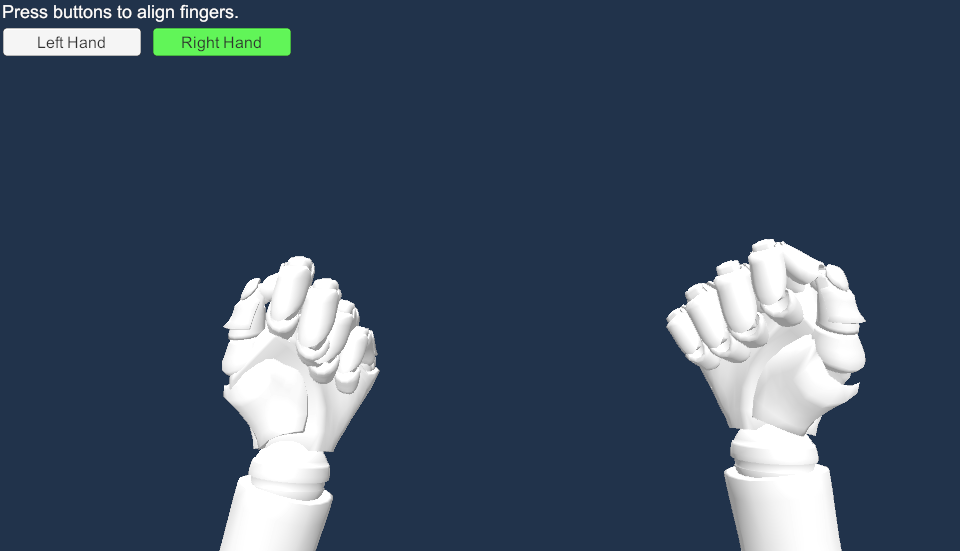
The objects HandAligners → RightHand and HandAligners → LeftHand carry the
HandFingersAligner component that does the work. They are plain empty
GameObjects — the component does not have to live on the character.
Set up your own character
1. Add the character to the scene. A T-pose makes configuration easier to judge but is not required.
2. Add the component. Create an empty GameObject and add Hand Fingers Aligner to it. One component drives one hand, so a full character needs two.
3. Assign the bones. Until every slot is filled the component shows “All bones should be specified.” and the configuration button stays hidden.
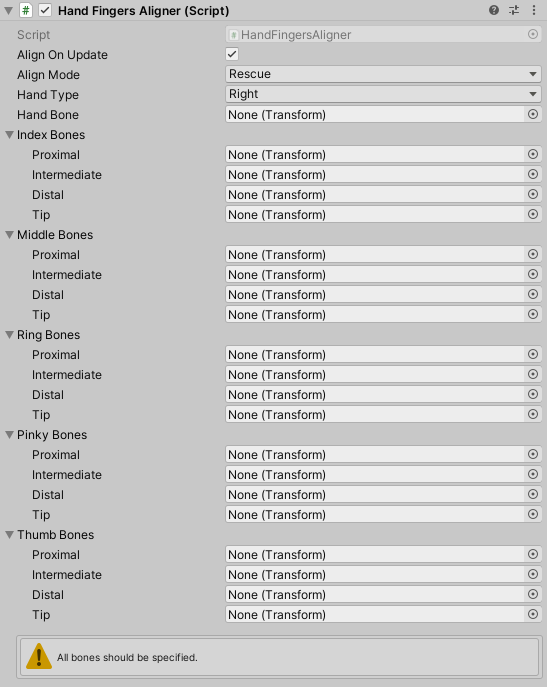
- Hand Type — Right or Left. Finger movement orientations differ between hands, so this has to match the hand you are assigning.
- Hand Bone — the character’s wrist bone.
- Index / Middle / Ring / Pinky / Thumb Bones — four transforms each: Proximal, Intermediate, Distal and Tip.
The Tip is the bone at the fingertip. Most rigs have one, often named
something like …DistalEnd; it is not animated, but the aligner needs it to
know which way the last segment points.
4. Set the constraints. With the bones in place the component offers Fingers Constraints.
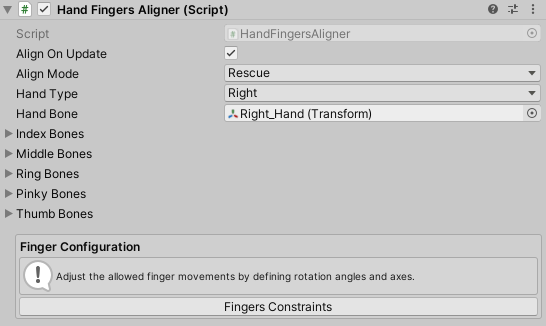
Component properties
| Property | Default | What it does |
|---|---|---|
| Align On Update | On | Aligns every frame in LateUpdate, after animation has posed the rig. Turn it off to call Align() yourself. |
| Align Mode | Rescue |
Which algorithm corrects the bones — see below. |
| Hand Type | Right |
Which hand these bones belong to. |
| Hand Bone | — | The wrist bone. |
| Index / Middle / Ring / Pinky / Thumb Bones | — | Proximal, Intermediate, Distal and Tip for each finger. |
Rescue and Fine Tune
| Mode | When to use it |
|---|---|
| Rescue | Strong deformations, where bones point in directions a finger cannot reach. It rebuilds the intermediate and distal bends from the actual geometry of the finger rather than trusting the incoming rotation, which is what lets it recover a badly retargeted hand. |
| Fine Tune | Soft deformations needing only minor correction. It derives the correction from the difference between the current and initial rotation, leaving a hand that is nearly right nearly untouched. |
Start with Rescue. If a hand that was already close comes out looking stiff or over-corrected, switch to Fine Tune.
Fingers Constraints
Fingers Constraints opens the panel where you define how far each bone may move. Pressing it stores the current finger poses and frames the hand in the Scene view; the constraint sliders then pose the fingers live, so you can see exactly what a limit means before committing to it.
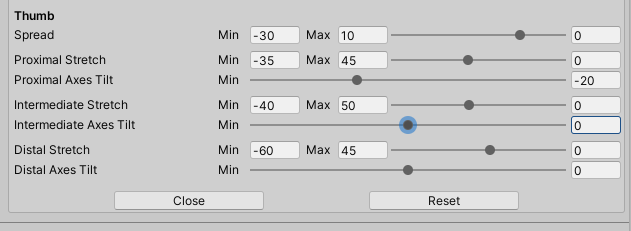
Each of the five fingers gets the same set of rows:
| Row | What it limits |
|---|---|
| Spread | How far the finger may splay sideways at its base. Only the proximal bone spreads; the two joints above it cannot. |
| Proximal / Intermediate / Distal Stretch | How far each joint may curl and straighten. |
| Proximal / Intermediate / Distal Axes Tilt | Rotates the axis a joint bends around. Use it when a rig’s bones are not aligned to the direction the finger actually moves. While a tilt slider has focus, that bone’s axes are drawn in the Scene view in red, green and blue. |
Min and Max set the allowed range, and the slider beside them moves the finger within it so you can preview the extremes. A minimum can never exceed its maximum — the fields correct each other as you type.
Spread narrows automatically as a finger curls: at full stretch the finger may splay its whole range, and by the far end of its stretch range the allowed spread has faded to zero. That is deliberate, and it is why a clenched fist comes out with fingers side by side rather than fanned.
- Close ends configuration: the fingers return to the poses they had when you opened the panel, and the preview sliders reset to zero. The limits you set are kept — that is what closing saves.
- Reset discards your limits and rebuilds the defaults from the character’s own geometry.
Configuration is an Editor-only, edit-mode tool. Entering Play mode closes the panel automatically.
Default constraints
Reset, and the first time the component initialises, produce these ranges. The axes come from the character’s own finger geometry, so the defaults are already fitted to your rig.
| Finger | Spread | Proximal stretch | Intermediate stretch | Distal stretch |
|---|---|---|---|---|
| Index | −30 … 5 | −90 … 0 | −90 … 0 | −90 … 0 |
| Middle | −10 … 10 | −90 … 0 | −90 … 0 | −90 … 0 |
| Ring | −5 … 25 | −90 … 0 | −90 … 0 | −90 … 0 |
| Pinky | −5 … 30 | −90 … 0 | −90 … 0 | −90 … 0 |
| Thumb | −25 … 25 | −25 … 0 | −45 … 0 | −45 … 0 |
The asymmetry is anatomical: fingers splay away from the middle finger, so the index leans one way and the ring and pinky the other, and the thumb bends far less than the rest.
Scripting
using UnityEngine;
using DevEloop.FingersAligner;

public class AlignHands : MonoBehaviour
{
    public HandFingersAligner rightHand;
    public HandFingersAligner leftHand;

    void LateUpdate()          // after whatever posed the rig this frame
    {
        rightHand.Align();
        leftHand.Align();
    }
}
| Member | What it does |
|---|---|
void Align() |
Corrects every finger. This is what Align On Update calls each frame. |
void AlignProximalBones() |
Corrects only the proximal joint of every finger. |
void AlignIntermediateBones() |
Only the intermediate joints. |
void AlignDistalBones() |
Only the distal joints. |
Alignment reads the pose the rig is already in and rewrites the finger bones’
local rotations, so it has to run after whatever posed the hand — an
Animator, an IK solver or a tracking rig. LateUpdate is where the component
does it, and where your own call belongs.
The per-joint methods are useful when something else owns part of the hand: let a tracking solution keep the knuckles and correct only the joints above them.
Troubleshooting
| Symptom | Cause and fix |
|---|---|
| “All bones should be specified.” | Every slot — including each Tip — must be filled before the aligner will run or be configurable. |
| Fingers Constraints does nothing | It is edit-mode only. Leave Play mode. |
| The fingers do not move at all | Align On Update is off and nothing calls Align(), or the constraint ranges are so narrow there is no room to correct. |
| The correction is fighting the animation | Something is posing the hand after the aligner. Alignment must be the last thing to touch those bones in the frame. |
| The hand curls the wrong way, or splays oddly | Hand Type does not match the hand. Orientations are mirrored between left and right. |
| One joint bends around the wrong axis | Set that joint’s Axes Tilt. The rig’s bone axes do not line up with the direction the finger actually moves; the red, green and blue lines in the Scene view show what the aligner is using. |
| A hand that was nearly right now looks stiff | Switch Align Mode to Fine Tune. Rescue rebuilds the bend from geometry, which is more correction than a nearly-correct hand needs. |
| A badly retargeted hand is barely improved | The opposite case — use Rescue. |
| Fingers stay fanned out in a fist | Widen the stretch range. Spread fades to zero only across the stretch range you defined, so a range that ends early leaves spread applied. |
| Constraint edits were lost | Reset rebuilds the defaults and discards them. Close is what keeps them. |
Support
Include your Unity version, how the hand is being driven — animation, retargeting or tracking — and a screenshot of the component with its bones assigned.