
Animation Recorder captures what a character actually does in your scene — every transform’s position, rotation and scale, plus blendshape weights — and turns it into something you can keep. Record in the Editor without entering Play mode, or record at runtime from procedural motion, physics, IK, VR tracking or anything else that moves a hierarchy. Save the result as a Unity AnimationClip, or export it to FBX or GLB for Blender, Maya or the web.
Videos
- Overview — the Editor workflow, start to finish.
- GLB export tutorial — recording an animation and exporting it as GLB.
- Meta Quest tutorial — recording a character driven by VR body tracking on a headset.
What you can record, and where it runs
A recording is a list of timeframes plus, for every captured node, one pose per
frame. Blendshape weights are captured from every SkinnedMeshRenderer under
the recorded object that has blendshapes. Nothing else is captured — materials,
particles and audio are outside what the plugin records.
The plugin needs Unity 2021.3 or newer. Where each output works:
| Output | Available |
|---|---|
| Recording itself | Everywhere Unity runs — Editor and any build target |
| AnimationClip asset | Unity Editor only |
| Animation Data asset | Unity Editor only |
| JSON | Everywhere, including builds on device |
| GLB export | Everywhere — Windows, macOS, Android, iOS, WebGL |
| FBX export | Windows only (the Editor on Windows, and Windows standalone builds) |
Recorded nodes are identified by their path relative to the recorded root,
for example Rig/Hips/Spine. Playback and export look nodes up by that path, so
a recording replays onto the same hierarchy — or onto another model whose
hierarchy uses the same names — but not onto a rig built differently.
Versions Comparison: Pro vs Lite
| Feature | Animation Recorder | Animation Recorder Lite |
|---|---|---|
| Recording transforms, in Editor and at runtime | Yes | Yes |
| AnimationClip, Animation Data asset and JSON | Yes | Yes |
| Blendshape recording | Yes | — |
| GLB export | Yes | — |
| FBX export (Windows) | Yes | — |
| VR sample for the Meta Movement SDK | Yes | — |
The FBX Export panel shows an upgrade link instead of its settings when the edition or the platform does not support it.
Record in the Editor
Open Window → Animation → AnimationRecorder, or Animation Recorder → Open in the main menu.
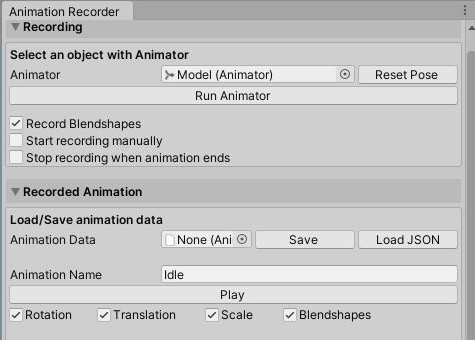
Drag a GameObject with an Animator into the Animator field, then press Run Animator. The window drives the Animator itself, so this works without entering Play mode; recording starts with it and stops when you press Stop Animator. What gets captured is every transform under that object, with the root recorded relative to the pose it had when you assigned it.
- Record Blendshapes — also capture blendshape weights. Leave it off for skeletal-only recordings; it is the more expensive half of a capture.
- Start recording manually — replaces automatic capture with Start Recording / Stop Recording buttons, so you can let the animation settle and record only the part you want.
- Stop recording when animation ends — stops as soon as the current Animator state passes its end, instead of looping into a second take.
- Reset Pose puts the character back to the pose it had when you assigned the Animator. It is applied automatically when you close the window.
Review and edit the recording
Once something is recorded, the Recorded Animation section fills in. Play previews it in the scene, and the Rotation / Translation / Scale / Blendshapes toggles choose which of those the preview applies — useful for checking that a jitter comes from where you think it does.
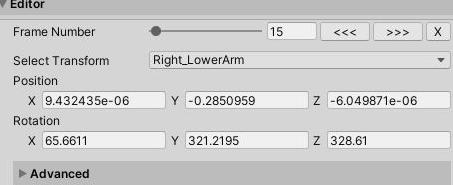
The Editor foldout is a frame-by-frame fixup tool:
- Frame Number scrubs the recording and applies that frame to the character;
<<<and>>>step one frame, and X deletes the current frame. - Select Transform picks the node to edit — the dropdown and the Hierarchy window stay in sync, so you can also just click a bone in the scene. Typing into Position or Rotation writes that value into the current frame.
- Advanced works on the Selected Transforms list, which follows your Hierarchy selection until you press Lock. Apply Frame to Range copies the current frame’s pose over the frame range you set, which is how you hold a hand still through a wobble; Interpolate replaces everything between the two ends of the range with a straight interpolation.
Animation Data at the top of the section is where a recording is kept
between sessions. Save writes an AnimationDataAsset to
Assets/DevEloop/AnimationRecorder/RecordedAnimations/<Animation Name>.asset;
assigning an existing asset loads it back for editing and export. Load JSON
opens a recording captured at runtime — this is how a take from a device gets
into the window.
Save and export
All four outputs use the Animation Name field for the file name and write to
Assets/DevEloop/AnimationRecorder/RecordedAnimations unless you point them
somewhere else.
AnimationClip
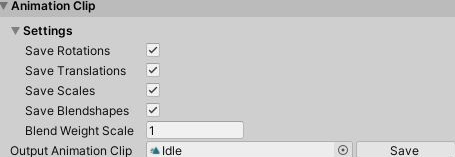
Writes a standard Unity AnimationClip — one curve per recorded channel — which
plays from an Animator or Timeline with no dependency on the plugin. Assign an
existing clip to Output Animation Clip to overwrite it, or leave it empty to
create <Animation Name>.anim. Saving replaces the clip’s curves rather than
merging into them.
Curve paths are relative to the object you recorded, so the clip expects an Animator on that same node. Recording a child and playing the clip from the character root will not line up.
FBX
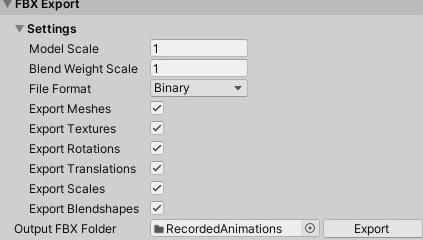
Exports the model and the animation as an FBX for Blender, Maya, 3ds Max or Unreal. Windows only.
- Model Scale multiplies every position and vertex — use
0.01for a tool that works in centimetres. - Blend Weight Scale multiplies every exported blendshape weight. Unity keeps these on a 0–100 scale; if your target application expects 0–1, or the shapes come out barely moving, this is the dial.
- File Format —
Binary(smaller) orASCII(diffable). - Export Meshes and Export Textures — turn both off to export the animation onto a skeleton alone. Textures are re-encoded as PNG and embedded.
- World Model Position exports the model at its world position instead of its local one.
GLB
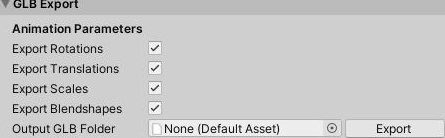
Exports a single self-contained .glb — meshes, materials, textures and the
animation — on every platform. This is the export to use for the web, for
three.js and model viewers, and from macOS or Linux, where FBX export is not
available.
JSON
AnimationRecorderComponent writes JSON directly (see below), and the window
reads it back with Load JSON. It is the transport format: record on a Quest
or a phone, copy the file to your machine, load it in the window, then save a
clip or export it.
Record at runtime
Add an Animation Recorder Component to any GameObject and point Animated
Model at the hierarchy to record. Everything it captures comes from
LateUpdate, after animation, physics and IK have run, so procedural motion,
ragdolls, VR tracking and hand-authored movement all record the same way.
| Property | What it does |
|---|---|
| Animated Model | The root of the hierarchy to record. Required. |
| Capturing FPS | Target capture rate, 30 by default. The real rate cannot exceed the application’s frame rate. |
| Record Blendshapes | Also capture blendshape weights from every SkinnedMeshRenderer underneath. |
| Start Capturing Automatically | Begin on Start() instead of waiting for a StartCapturing() call. |
| Root Motion Capture Mode | How the root’s own movement is recorded — see below. |
| Save To Json | Write JSON when capturing stops. |
| Output Animation Json Filename | Where to write it. Empty means <persistentDataPath>/AnimationRecorder/animation_N.json, numbered so a take never overwrites the last one. |
| Save To Animation Clip | Write an AnimationClip asset when capturing stops. Editor only. |
| Output Animation Clip | The clip asset to write. Empty creates Assets/DevEloop/AnimationRecorder/RecordedAnimations/animation.anim. |
| Nodes To Capture | Record only these transforms. Empty records the whole hierarchy. |
| Include Child Nodes | Also record everything under each listed node. |
| Nodes To Exclude | Skip these transforms — cheaper takes, and a way to leave a prop or a camera rig out. |
| Exclude Child Nodes | Also skip everything under each excluded node. |
Capturing stops — and the outputs are written — when you call
StopCapturing(), and also when the component is disabled or the object is
destroyed. If the application loses focus mid-capture, the JSON is written
immediately, so a take survives alt-tabbing or a headset being removed.
Root motion
The character’s own travel through the world is the one thing that has to be a choice, because what you want back depends on where you replay it.
| Mode | What the root records |
|---|---|
| Local Pose Relative To Initial Pose (default) | The offset from wherever the root stood when recording started. Replays correctly from any starting position. |
| Local Pose | The root’s raw local pose, so the character returns to the exact place it was recorded. |
| World Pose | The root’s world pose. Use when the character is parented under something that moves. |
| Apply Root Motion To Child | The root is not recorded; its movement is folded into its direct children instead. Use when the clip must drive a rig whose own root has to stay put. |
| No Motion | The root is not recorded at all — animation in place. |
Scripting
using System.IO;
using UnityEngine;
using DevEloop.AnimationRecorder;

public class Example : MonoBehaviour
{
    public AnimationRecorderComponent recorder;

    void OnTakeStart() => recorder.StartCapturing();

    void OnTakeEnd()
    {
        recorder.StopCapturing();          // writes the JSON and clip you enabled
        recorder.SaveAnimationToGlb(Path.Combine(Application.persistentDataPath, "take.glb"));
    }
}
| Member | What it does |
|---|---|
void StartCapturing() / void StopCapturing() |
Start a take; stop it and write the enabled outputs. |
bool IsCapturing() |
Whether a take is running. |
void CaptureSingleFrame() |
Record exactly one frame — a pose snapshot rather than an animation. |
AnimationRecorder GetAnimationRecorder() |
The underlying recorder; GetCapturedData() on it returns the AnimationData for the last take. |
void SaveAnimationToGlb(string path) |
Export the last take as GLB. |
byte[] SaveAnimationToGlb() |
The same GLB as bytes, for uploading rather than writing to disk. |
void SaveAnimationToFbx(string path) |
Export the last take as FBX. Windows only. |
Both save methods refuse to run while a take is in progress and log the reason.
GlbExporter and FbxExporter can also be used directly, with per-channel
ExportRotations / ExportTranslations / ExportScales / ExportBlendshapes
flags and the same scale settings as the window; each takes either an
AnimationData or the path to a recorded JSON file.
Play a recording back
Animation Player Component replays a recording onto a model at runtime, without an Animator or an AnimationClip.
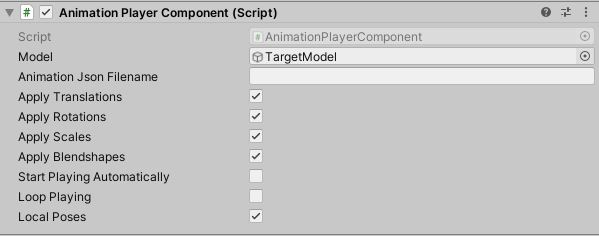
Point Model at the hierarchy to animate and give it an Animation Json
Filename, or hand it data from code with SetAnimationData(). The Apply
toggles choose which channels are used, and Local Poses must match how the
take was recorded. The root follows whichever root motion mode the recording
was made with.
StartPlaying() and StopPlaying() control playback; the AnimationPlayer
class behind the component adds ApplyFrame(int), GetFramesCount() and
DeleteFrame(int) if you want to build your own scrubbing UI.
This is the fastest way to check a take, and the only way to replay one on a platform where you cannot create an AnimationClip asset.
Sample scenes
Four scenes in Assets/DevEloop/AnimationRecorder/Scenes:
- 1-EditorModeRecordingSample — the Animation Recorder window workflow, with a character and an Animator already set up.
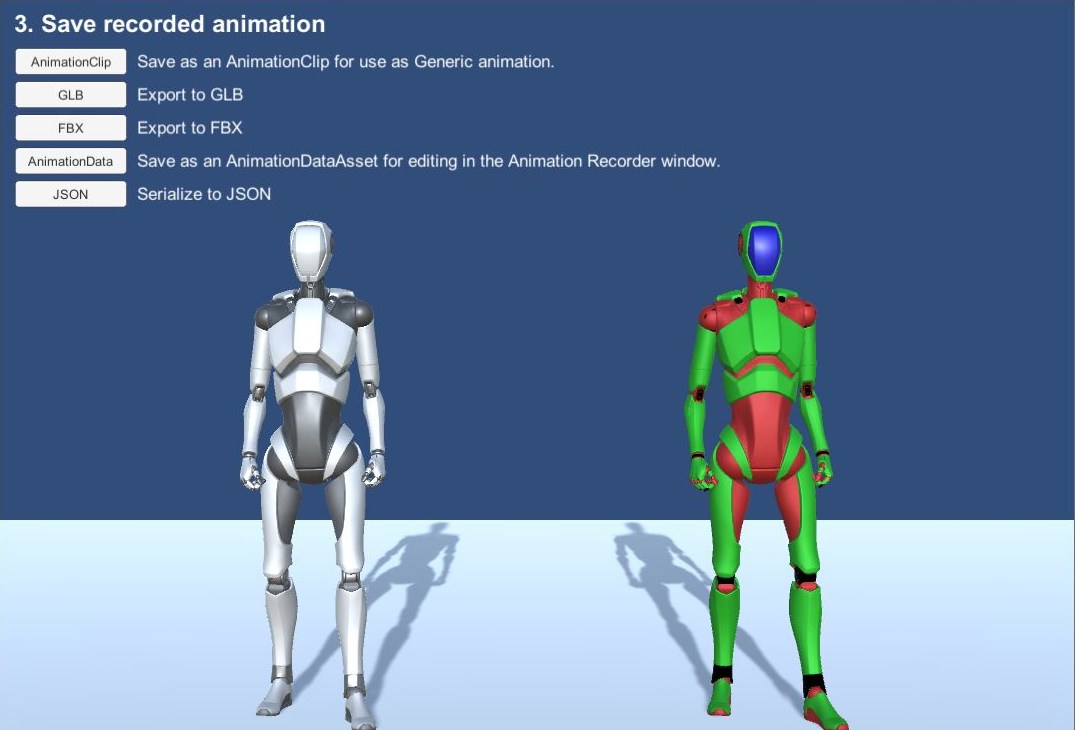
- 2-PlayModeRecordingSample — runtime recording, step by step: capture the left model, replay it on the right one, then save it in each of the five formats. The quickest way to confirm the plugin works, and a working reference for wiring the API to your own UI.
- 3-BlendshapesRecordingSample — the same, on a face with blendshapes.
- MetaMovementsSdkSample — recording a character driven by VR body tracking
on a Quest. It needs the Meta XR Core and Interaction SDKs and the
Movement SDK, so it ships
as a
.unitypackageto import once those are in the project; the scene’sREADME.txthas the steps. The take is written to/sdcard/Android/data/[app_name]/files/AnimationRecorderon the headset — copy it to your machine and load it with Load JSON.
Troubleshooting
| Symptom | Cause and fix |
|---|---|
| The FBX Export panel shows an upgrade link instead of settings | FBX export needs the full version, and Windows. On macOS, Linux or Android, export GLB instead. |
| “export to fbx doesn’t work on your platform” | The same, from code. FbxExporter.IsFbxExportSupported tells you before you try. |
| “the … mesh isn’t readable. It can’t be exported into FBX” | Only happens in a build: enable Read/Write in the model’s import settings so a player can read its vertices. In the Editor the mesh is readable either way, which is why this appears late. |
| Playback or export moves nothing | Node paths did not match. A recording replays onto the hierarchy it came from; recording Character and playing onto Character/Rig, or onto a differently built rig, finds no nodes. |
| No blendshapes in the recording | Record Blendshapes was off, or the edition is Lite. Only SkinnedMeshRenderers that actually have blendshapes are captured. |
| Blendshapes are barely visible in the exported FBX | Set Blend Weight Scale — the exported weights are on Unity’s 0–100 scale until you rescale them. |
| “Blend shape ‘X’ not found in mesh ‘Y’” on GLB export | The model being exported is not the one that was recorded. Export against the recorded hierarchy. |
| The character does not travel, or snaps back to where it was recorded | Root Motion Capture Mode. The default records the root as an offset from its starting pose; No Motion drops it entirely. |
| A saved clip drives nothing, or the wrong bones | Clip curve paths are relative to the recorded object. Put the Animator on that same object. |
| The recording is choppy | Raise Capturing FPS — but capture happens once per frame, so a take can never be smoother than the frame rate it was recorded at. Recording in the Editor window, which drives the Animator itself, is steadier than recording a struggling build. |
| No JSON in a build | Capturing has to stop for anything to be written: call StopCapturing(), or let the component be disabled. The default location is <persistentDataPath>/AnimationRecorder. |
| Nothing is saved as a clip or asset in a build | AnimationClip and Animation Data assets are Editor-only. Record to JSON on the device and convert it in the Editor. |
Support
Include your Unity version, platform, what you recorded and the full console output — the plugin logs the reason for every failure it can detect.